
This section covers everything related to handling payments using your Revolut Terminal, including processing transactions, handling refunds, and sending receipts.
Take payments
Before accepting customer payments, ensure your Revolut Terminal is set up correctly and connected to the internet.
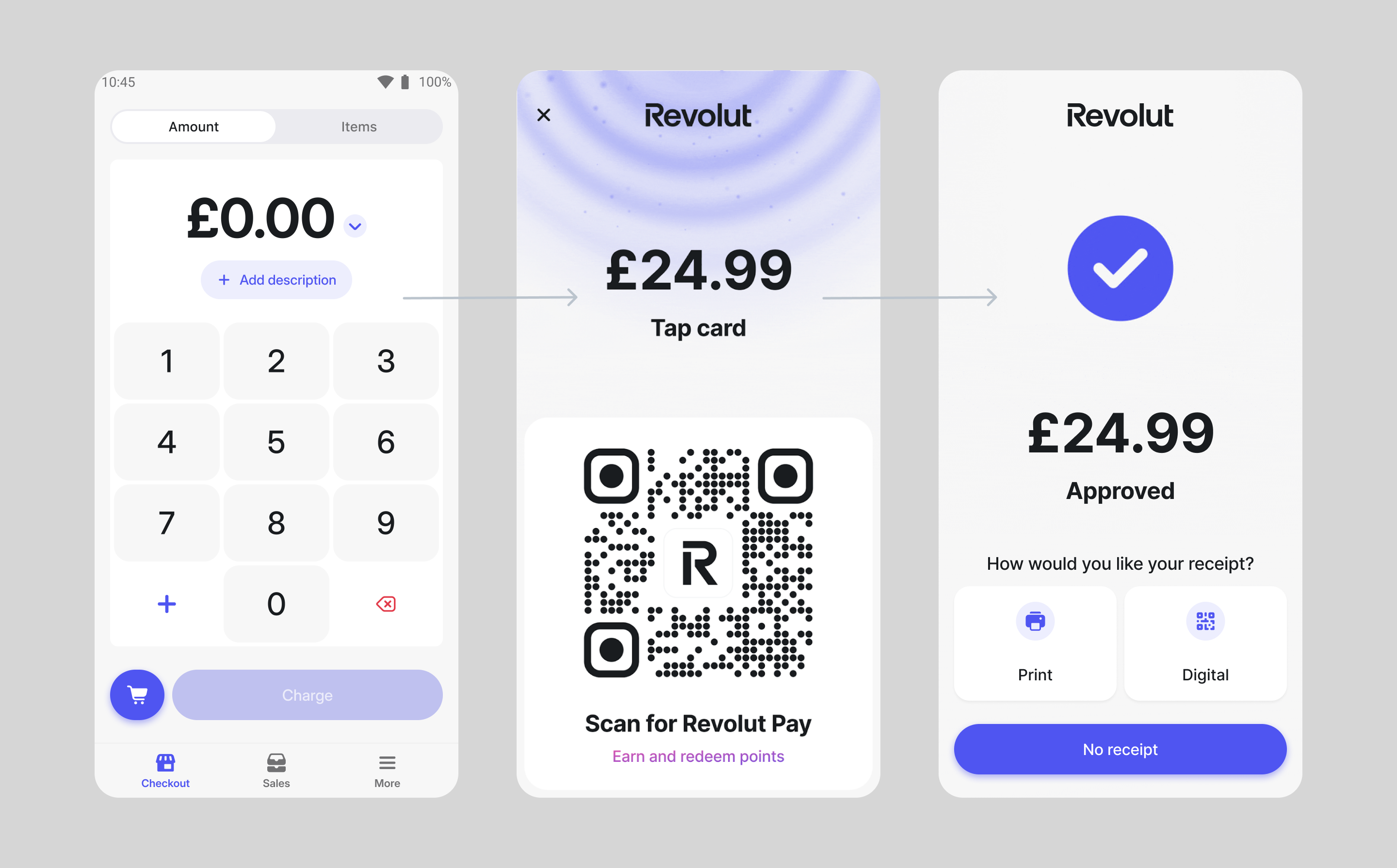
- Log in to your Revolut Terminal and go to the Checkout menu.
- Enter the amount to charge on the Amount tab or add products to the cart from your catalogue via the Items tab.
- Tap
Chargeonce the cart is ready. - Optionally, your customers can add a tip. Tap
Continuewhen ready. - Your customer can now tap or insert their card (Visa, MasterCard, AMEX - only in the UK), use Revolut Pay or their digital wallet to complete the transaction.
In case the internet connection is lost an alert is displayed.
Pre-authorisation
Pre-authorisation lets you hold funds on a customer's card without capturing immediately, giving you up to 30 days to determine and settle the final amount. This is available once you enable the feature in your Checkout settings.
For more information on taking pre-authorised payments, managing holds, and capturing funds, see: Pre-authorisation on Revolut Terminal.
Pay with Revolut Pay
Customers can pay with Revolut Pay by scanning the QR code on the payment screen with their phone. They will be prompted in the Revolut app to complete the payment, using funds in their pockets or RevPoints.
If they don't have a Revolut account yet, they are prompted to create one, while still being able to pay with their card or digital wallet to complete the payment.
Cancel a transaction
To cancel a transaction tap the icon in the top-left corner of the payment screen.
If the payment is already completed you can refund the customer, see Issue refunds.
Edit the cart
- On the order overview screen, tap in the bottom-left corner to view added items.
- Tap on an item and select to remove it.
- Or, tap the
Clearoption on the top right to clear the cart entirely.
Enable tipping
During the payment flow, after tapping Charge, a tip selection screen will appear. Customers can select a predefined percentage, enter a custom value, or skip the tip.
To accept tips during a payment, you need to enable the feature:
- Go to the More menu.
- Select Checkout section.
- Enable the tip feature and define the 3 default tip percentages.
Take payments in different currencies
Revolut allows you to charge customers in multiple currencies. To charge in a different currency:
- Ensure you only charge a simple amount or the cart only contains custom items (the catalogue does not support multiple currencies per transaction).
- Tap the arrow next to the amount field and select the desired currency.
- Proceed with the transaction as usual.
Accepted currencies
You can take payments in the following currencies:
AUD, CAD, CHF, DKK, EUR, GBP, HKD, HUF, ILS, JPY, NOK, NZD, PLN, RON, SEK, THB, TRY, USD, ZAR
Pay at Counter
Pay at Counter mode enables your Revolut Terminal to accept payment intents pushed from integrated Point of Sale (POS) systems, including the Revolut POS app. When enabled, you can initiate sales on your POS and send payments directly to the connected Terminal for customers to complete the transaction.
Before using Pay at Counter with Revolut POS, ensure you have:
Take payments with Pay at Counter
To process a payment using Pay at Counter:
- Complete an order on your POS system and initiate the card payment.
- The payment amount is automatically sent to the selected Revolut Terminal.
- The customer completes the payment on the Terminal as usual.
- Once approved, your POS system receives payment confirmation and the transaction is complete.
- Using Revolut POS app? See Order management: Select payment method for detailed payment flow instructions.
- Integrating a 3rd-party POS? See Push payments to Revolut Terminal for the complete API integration guide.
If you're using tipping, ensure it's enabled on both the Revolut POS and Terminal. See Additional features: Checkout settings for Terminal configuration.
Parked bills
Parked bills allow you to retrieve parked orders from the Revolut POS directly from your Terminal.
For instructions on creating and managing parked bills on Revolut POS, see Park the bill on the POS
Enable parked bills
To enable the parked bills feature:
- On your Terminal, go to the More > Checkout.
- Toggle Parked bills to enable the feature.
- Make sure the Terminal uses the same location as the Revolut POS.
Retrieve the parked bill on the Terminal
- Bring the Revolut Terminal to the table.
- On the Terminal, go to the Checkout menu.
- Tap the icon next to the
Chargebutton to see the parked bills from your POS. - Locate and select the order from the list (based on table number or notes).
Review and confirm the order
- Review the order details with the customer: items, discounts, service charges.
- Make any final adjustments if needed. If desired, print a preliminary receipt before charging.
Collect payment at the table
- Tap
Chargeon the Terminal. - Proceed with the transaction as usual.
Receipts
After a payment is approved, your Terminal will display the payment confirmation screen, where you have the following options:
- Print: Tap Print to provide a physical receipt immediately.
- Digital: Tap Digital to display a QR code on the screen. Your customer can scan this code with their phone to view and save the receipt.
- No receipt: If the customer doesn't need a receipt, simply select No receipt to skip this step.
If you need to reprint a receipt later, you can locate the transaction in your terminal's Sales menu and choose to print the receipt again.
The Terminal's printer uses 40 mm standard paper.
Issue refunds
You can issue full or partial refunds directly from the Revolut Terminal. You can partially refund a transaction multiple times - as long as the total amount does not exceed the original full amount.
- Log in to your Revolut Terminal and go to the Sales menu.
- Locate and select the transaction, then tap Refund.
- Enter your Revolut Terminal passcode and tap
Confirm. - Enter the amount to refund (full or partial).
The refund will be processed within 5 business days.
Transaction fees are non-refundable. Refunds can only be processed if sufficient funds are available in your Merchant pocket.
Withdraw funds
To access the funds in your Merchant pocket, you need to transfer them to your Revolut Business account.
- Go to the Merchant tab and tap on Payout
- Enter the amount and select the destination pocket.
- Confirm the withdrawal. The funds will be credited to your account.