
Accept payments via Revolut Checkout - Web
Welcome to the implementation guide for Revolut Checkout on web! In this tutorial, we'll walk you through the integration process of the Revolut Checkout widget.
Revolut Checkout is an embedded widget that aggregates all available payment methods (Card, Apple Pay, Google Pay, Pay by Bank, etc.) into a single, fully-managed UI. The ordering and availability of payment methods are configured through your Business Dashboard, not through code, giving you flexibility to update your checkout experience without deploying new code.
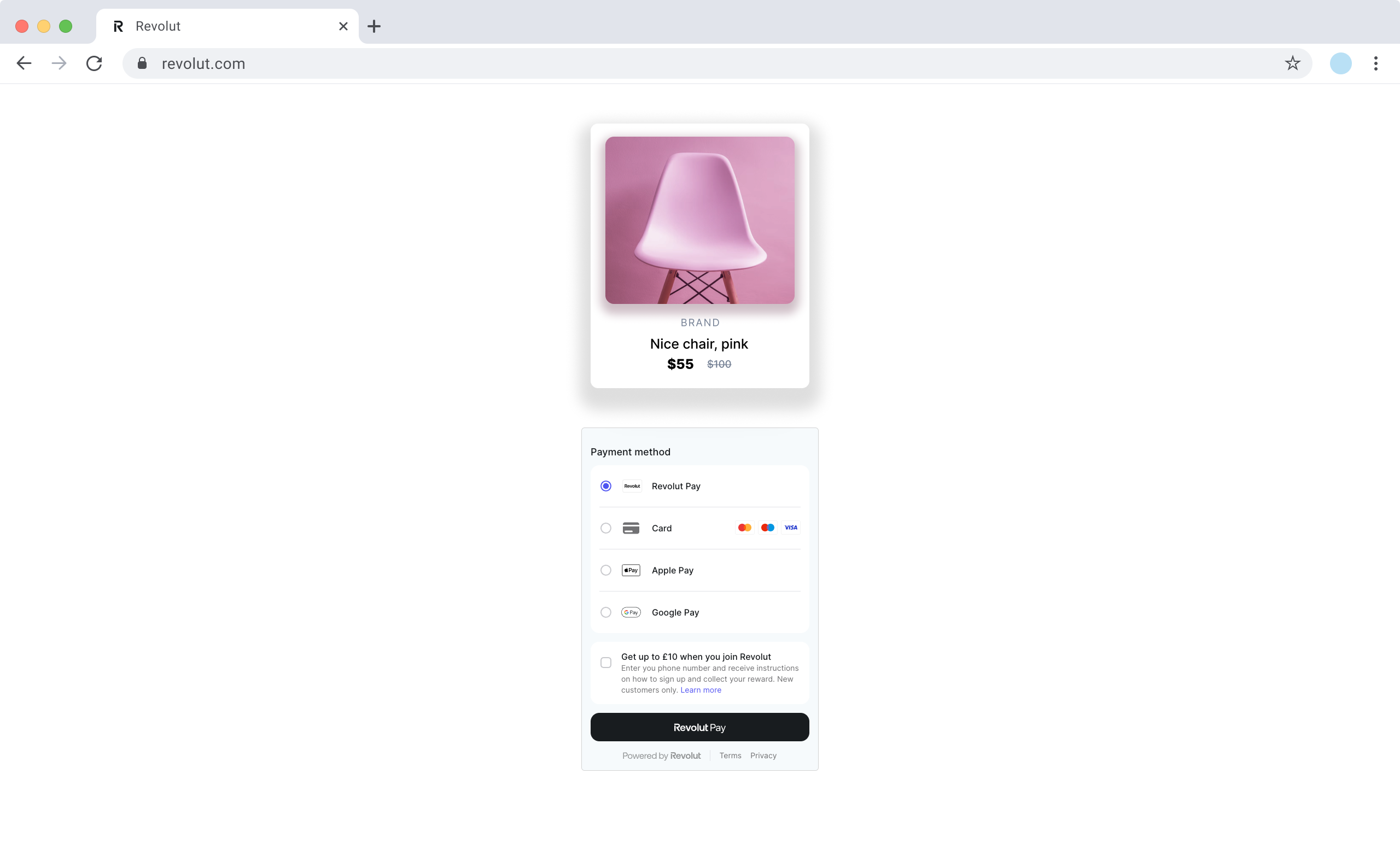
When to use
Use embedded checkout when:
- You want a complete checkout solution with all payment methods in one widget
- You prefer configuration via Revolut Business dashboard over code
- You need automatic payment method ordering based on customer location and preferences
- You want to add new payment methods without deploying code changes
Use individual payment methods when:
- You need granular control over payment button placement
- You want to build custom UI around each payment method
- You need different payment methods on different pages
- You require specific payment method customisation beyond what the widget offers
How it works
From an implementation perspective, the Revolut Checkout widget works with the following components:
- Server-side: A server-side endpoint is required to securely communicate with the Merchant API to create orders.
- Client-side: The widget uses your public API key to initialise a
RevolutCheckoutinstance, which provides access to theembeddedCheckoutmethod. The widget is then configured and mounted using atokenfrom the created order to initiate the payment. The widget handles the payment flow, including actions like redirection or authentication. - Endpoint for webhooks: Your server should listen for webhook events to reliably track the payment lifecycle and handle critical backend processes like updating order status, managing inventory, or initiating shipping. For more information, see: Use webhooks to keep track of the payment lifecycle.
The payment flow works as follows:
- The customer goes to the checkout page.
- Your frontend displays the Revolut Checkout widget showing all enabled payment methods.
- The customer selects their preferred payment method and proceeds with payment.
- Your frontend uses your server endpoint to create an order and obtains the order
tokenvia the Merchant API: Create an order. - The widget processes the payment and presents the payment result to the customer through callback functions.
- Your server receives webhook notifications about each event you're subscribed to. While this is optional, it's strongly recommended as the most reliable way to track the payment lifecycle. For more information, see: Use webhooks to keep track of the payment lifecycle.
For more information about the order and payment lifecycle in the Merchant API, see: Order and payment lifecycle.
Implementation overview
Check the following high-level overview on how to implement Revolut Checkout on your website:
- Set up an endpoint for creating orders
- Install Revolut Checkout package
- Initialise and mount the widget
- Handle payment results
The following sections describe each step in detail. To see working examples, you can skip ahead.
Before you begin
Before you start this tutorial, ensure you have completed the following steps:
Implement Revolut Checkout
This section walks you through the server- and client-side implementation step by step.
The SDK supports both async/await syntax and the traditional Promise-based .then() syntax. You can see examples of both at each step of the guide.
1. Set up an endpoint for creating orders
Before implementing the client-side widget, you must first create a dedicated endpoint on your server. This is a critical security step, as your secret API key must never be exposed on the client side.
The role of this server-side endpoint is to act as a secure bridge between your frontend and the Merchant API. When a customer initiates a payment on your website, your frontend will call this endpoint. Your endpoint is then responsible for:
- Receiving the checkout details (e.g.,
amount,currency) from the frontend request. - Securely calling the Merchant API: Create an order endpoint with the received details.
- Receiving the order details, including the public
token, back from the Merchant API. - Passing this
tokenback to your frontend in the response.
Later, in the client-side configuration, the createOrder callback function will call this endpoint to fetch the token, which is required to initialise the checkout widget.
Below is an example of the JSON response your endpoint will receive from the Merchant API after successfully creating an order. The crucial field to extract and return to your frontend is the token.
{
  "id": "6516e61c-d279-a454-a837-bc52ce55ed49",
  "token": "0adc0e3c-ab44-4f33-bcc0-534ded7354ce",
  "type": "payment",
  "state": "pending",
  "created_at": "2023-09-29T14:58:36.079398Z",
  "updated_at": "2023-09-29T14:58:36.079398Z",
  "amount": 1000,
  "currency": "GBP",
  "outstanding_amount": 1000,
  "capture_mode": "automatic",
  "checkout_url": "https://checkout.revolut.com/payment-link/0adc0e3c-ab44-4f33-bcc0-534ded7354ce",
  "enforce_challenge": "automatic"
}
2. Install Revolut Checkout package
Before you begin the client-side integration, add the Revolut Checkout package to your project using your preferred package manager. This package is necessary to interact with the Revolut Checkout widget.
Make sure you're on the latest version of the @revolut/checkout library.
npm install @revolut/checkout
After installation, import the SDK in your JavaScript file:
import RevolutCheckout from '@revolut/checkout'
Alternatively, you can add the widget to your code base by adding the embed script to your page directly. To learn more, see: Adding the embed script.
3. Initialise and mount the widget
Now you'll configure the checkout widget and mount it to your page.
3.1 Initialise the SDK
First, initialise the Revolut Checkout SDK with your API credentials. This creates the foundation for mounting the widget.
import RevolutCheckout from '@revolut/checkout'

const { destroy } = await RevolutCheckout.embeddedCheckout({
  publicToken: '<yourPublicApiKey>',
  mode: 'prod', // 'prod' for production, 'sandbox' for testing
  locale: 'en' // Optional, defaults to 'auto'

  // Configuration will be added in the next steps
})

// Call destroy() later if you need to remove the widget from the page
Required parameters:
publicToken- Your Merchant API Public keymode- Environment:'prod'for production or'sandbox'for testing
Optional parameters:
locale- Widget language (defaults to'auto'for automatic detection)
3.2 Add a DOM element
First, add an empty <div> container to your HTML file where you want the widget to appear.
<...>

<div id="checkout-container"></div>

<...>
3.3 Mount and configure
Now that you have the DOM element ready, add the target and createOrder configuration to mount the widget and enable order creation.
import RevolutCheckout from '@revolut/checkout'

const { destroy } = await RevolutCheckout.embeddedCheckout({
  publicToken: '<yourPublicApiKey>',
  mode: 'prod',
  locale: 'en', // Optional, defaults to 'auto'

  // Mount the widget to the DOM element
  target: document.getElementById('checkout-container'),

  // Create order on-demand when payment is initiated
  createOrder: async () => {
    // Call your backend to create an order
    // For more information, see: https://developer.revolut.com/docs/merchant/create-order
    const order = await yourServerSideCall()
    return { publicId: order.token }
  }

  // Callback handlers will be added in step 4
})

// Call destroy() later if you need to remove the widget from the page
Parameters for mounting:
target(required) - The DOM element where the widget should be rendered (e.g.,document.getElementById('checkout-container'))createOrder(required) - An async function that calls your backend to create an order via the Merchant API and returns thetoken(aspublicId)- Your backend calls the Merchant API: Create an order endpoint
- The Merchant API responds with a
token - You return
{ publicId: order.token }to the widget so it can start the checkout session
Optional configuration:
email- Pre-fill the customer's email addressbillingAddress- Pre-fill the customer's billing address with the following fields:countryCode- Two-letter country code (ISO 3166-1 alpha-2)region- State, province, or regioncity- City namepostcode- Postal or ZIP codestreetLine1- First line of the street addressstreetLine2- Second line of the street address (optional)
When you provide email and billingAddress, the widget automatically pre-fills these fields in the payment form, reducing the number of fields the customer needs to fill in manually.
This improves the checkout experience and can increase conversion rates, especially when you already have customer information from registration or previous orders.
Example:
const { destroy } = await RevolutCheckout.embeddedCheckout({
  // ... other configuration
  email: '[email protected]',
  billingAddress: {
    countryCode: 'GB',
    region: 'Greater London',
    city: 'London',
    postcode: 'EC1A 1BB',
    streetLine1: '1 Example Street',
    streetLine2: 'Flat 2B'
  }
})
When testing in the Sandbox environment, be aware that Apple Pay and Pay by Bank payment methods are not available. These payment methods can only be tested in the production environment.
3.4 Destroy the widget (optional)
The embeddedCheckout() function returns an instance with a destroy() method. If you need to remove the widget from the page, you can call this method:
const { destroy } = await RevolutCheckout.embeddedCheckout({
  // ... configuration
})

// Later, when you need to remove the widget:
destroy()
4. Handle payment results
Now let's complete the implementation by adding callback handlers to respond to payment events. These callbacks allow you to provide immediate feedback to customers and update your UI based on payment outcomes.
Add the onSuccess, onError, and onCancel callbacks to your configuration:
import RevolutCheckout from '@revolut/checkout'

const { destroy } = await RevolutCheckout.embeddedCheckout({
  publicToken: '<yourPublicApiKey>',
  mode: 'prod',
  locale: 'en', // Optional, defaults to 'auto'
  target: document.getElementById('checkout-container'),

  createOrder: async () => {
    const order = await yourServerSideCall()
    return { publicId: order.token }
  },

  // Handle successful payments
  onSuccess({ orderId }) {
    console.log('Payment successful!', orderId)
    window.location.href = `/confirmation?orderId=${orderId}`
  },

  // Handle payment errors
  onError({ error, orderId }) {
    console.error('Payment failed:', error.message, orderId)
    alert(`Payment failed: ${error.message}`)
  },

  // Handle cancelled payments (optional)
  onCancel({ orderId }) {
    console.log('Payment cancelled', orderId)
    alert('Payment was cancelled.')
  }
})
After configuring the widget, you need to decide how to handle payment results. Revolut Checkout provides two complementary mechanisms for tracking payment outcomes.
Before choosing your implementation approach, it's crucial to understand the roles of client-side callbacks and server-side webhooks:
- Widget callbacks (
onSuccess,onError,onCancel): These are perfect for handling frontend logic, such as displaying a success message, updating the UI, or showing an error to the customer. However, their delivery is not guaranteed. Factors like the user's browser performance, network connectivity, or ad-blockers can prevent these events from firing. - Webhooks: These are server-to-server notifications that we guarantee to send for every payment status change. You must rely on webhooks for all critical backend logic, such as confirming the order, releasing digital goods, or starting the shipping process.
Never use widget callbacks as the sole trigger for critical backend logic.
4.1 Widget callbacks (for UI updates)
The widget callbacks (onSuccess, onError, and onCancel) allow you to respond immediately to payment events in your frontend. These are ideal for providing instant feedback to your customers.
When to use widget callbacks:
- Display success or error messages to the user
- Update the UI to reflect the payment status
- Redirect users to a confirmation/error page
- Re-enable the checkout form after cancellation
- Show loading indicators or success animations
Example use cases:
onSuccess() {
  // Show a success message
  showSuccessMessage('Payment successful! Thank you for your purchase.')

  // Redirect to confirmation page
  window.location.href = '/order-confirmation'
}

onError(error) {
  // Show error to user
  showErrorMessage(`Payment failed: ${error.message}`)

  // Re-enable checkout button
  enableCheckoutButton()
}

onCancel() {
  // Inform user of cancellation
  showInfoMessage('Payment was cancelled. You can try again.')
}
Important limitations:
- These callbacks are not reliable for backend operations
- Users may close their browser before callbacks fire
- Ad-blockers or network issues can prevent callbacks
- Never fulfil orders based solely on these callbacks
4.2 Webhooks (for reliable backend operations)
Webhooks are server-to-server HTTP notifications that Revolut sends to your backend whenever a payment status changes. Unlike widget callbacks, webhooks are guaranteed to be delivered, making them essential for critical business operations.
When to use webhooks:
- Confirming order completion before fulfilment
- Updating inventory or stock levels
- Initiating shipping or delivery processes
- Releasing digital goods or access rights
- Recording transactions in your database
- Sending confirmation emails
- Processing refunds or chargebacks
How webhooks work:
- An order status changes (e.g., from
pendingtocompleted) - Revolut sends an HTTP POST request to your webhook endpoint
- Your server processes the webhook and performs backend operations
- Your server responds with a
200 OKstatus code
Setting up webhooks:
To implement webhooks, you need to:
- Create a dedicated endpoint on your server to receive webhook events
- Register this endpoint URL in your Revolut Business dashboard
- Verify webhook signatures for security
- Process events based on their type (e.g.,
ORDER_COMPLETED,ORDER_PAYMENT_DECLINED)
For detailed implementation instructions, see: Use webhooks to keep track of the payment lifecycle.
Best practices:
- Always verify webhook signatures to ensure authenticity
- Implement idempotency to handle duplicate webhooks
- Respond with
200 OKquickly, then process asynchronously - Only fulfil orders after receiving
ORDER_COMPLETEDwebhook - Use both methods together: callbacks for UX, webhooks for backend operations
Customise Revolut Checkout
One of the key advantages of Revolut Checkout is that you can fully customise the checkout experience through your Revolut Business dashboard without any code changes. This allows you to:
- Enable or disable specific payment methods
- Reorder payment method priority
- Add promotional and trust-building modules
- Configure card schemes
All customisation happens in your Revolut Business dashboard at: > APIs > Merchant API tab > Revolut Checkout
Payment methods
Control which payment methods appear in your checkout widget and in what order.
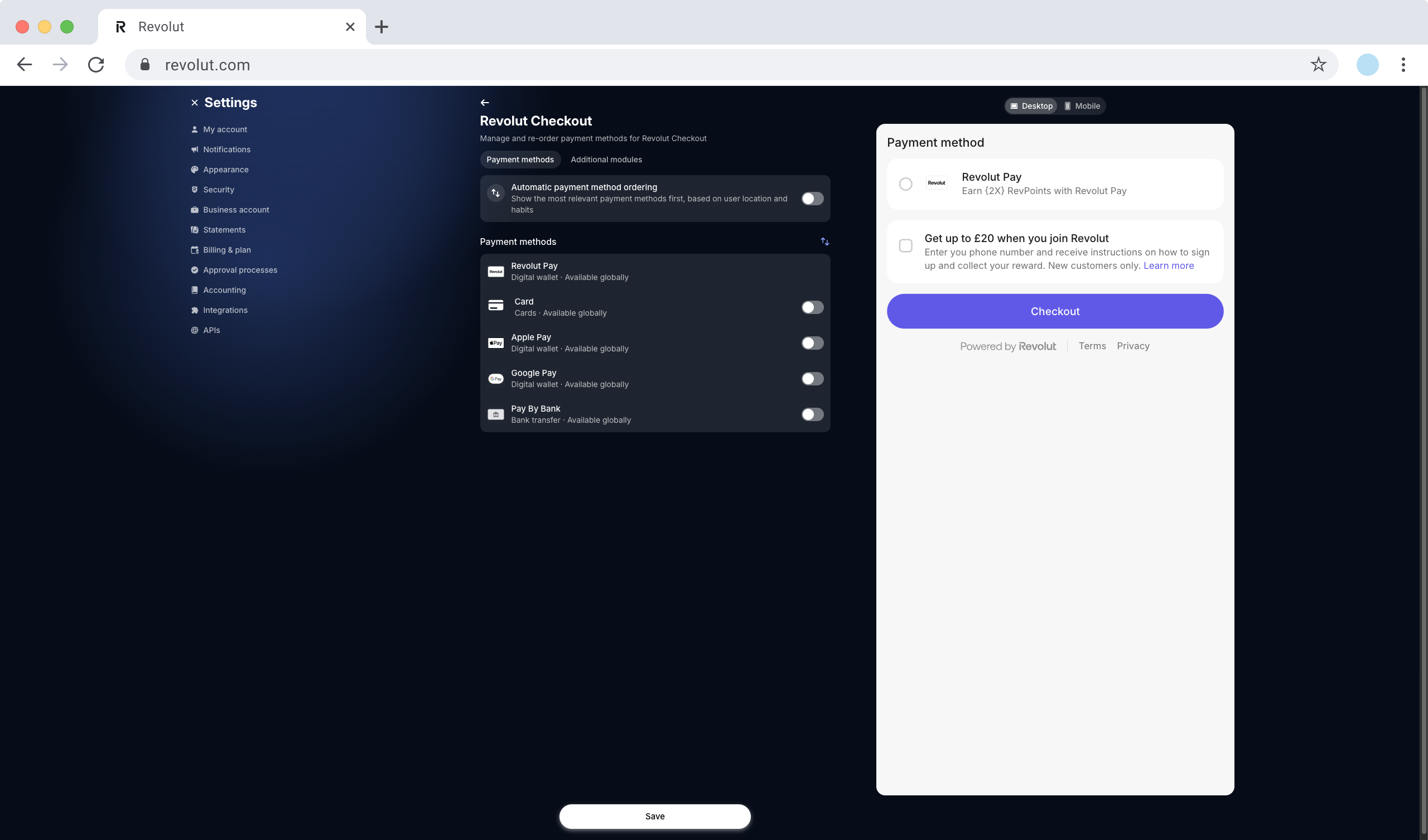
Before saving, use the Desktop and Mobile preview panels to see how your customisation will appear to customers on different devices. This helps you verify that payment methods are displayed correctly and additional modules look as expected.
Enable or disable payment methods
Toggle individual payment methods on or off based on your business needs:
- Revolut Pay - Customers can pay via their cards or Revolut account
- Card - Accept card payments from major providers (Visa, Mastercard, Amex, etc.)
- Apple Pay - Quick checkout for Apple-wallet users
- Google Pay - Quick checkout for Google-wallet users
- Pay by Bank - Direct bank transfers
When you enable Card payments, you can further customise which card schemes to accept by expanding the card payment method settings.
Click Save to finalise your changes.
Reorder payment methods
Control the order in which payment methods appear in the widget.
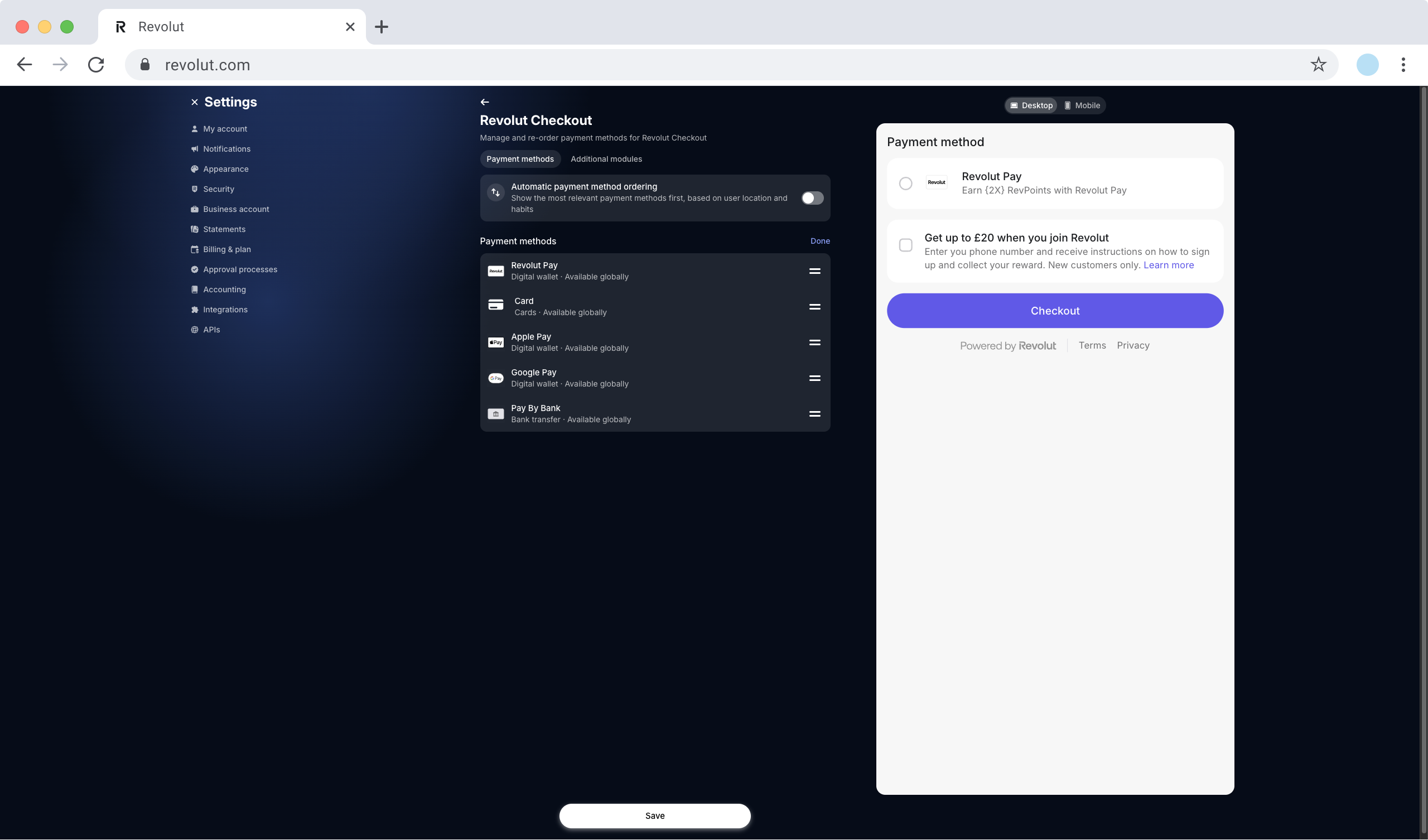
- Click the icon to enter reorder mode.
- Use the drag handle next to each payment method.
- Drag and drop payment methods to your preferred order.
- The order you set determines the sequence customers see in the widget.
- Click Done to exit reorder mode.
- Click
Saveto finalise your changes.
Automatic payment method ordering
Enable Automatic payment method ordering to let Revolut dynamically optimise the payment method sequence based on:
- Customer location
- User habits and preferences
- Payment method availability
- Conversion data
When enabled, Revolut automatically shows the most relevant payment methods first for each customer, potentially improving conversion rates.
Additional modules
Enhance your checkout experience with optional modules that build trust and increase conversions.
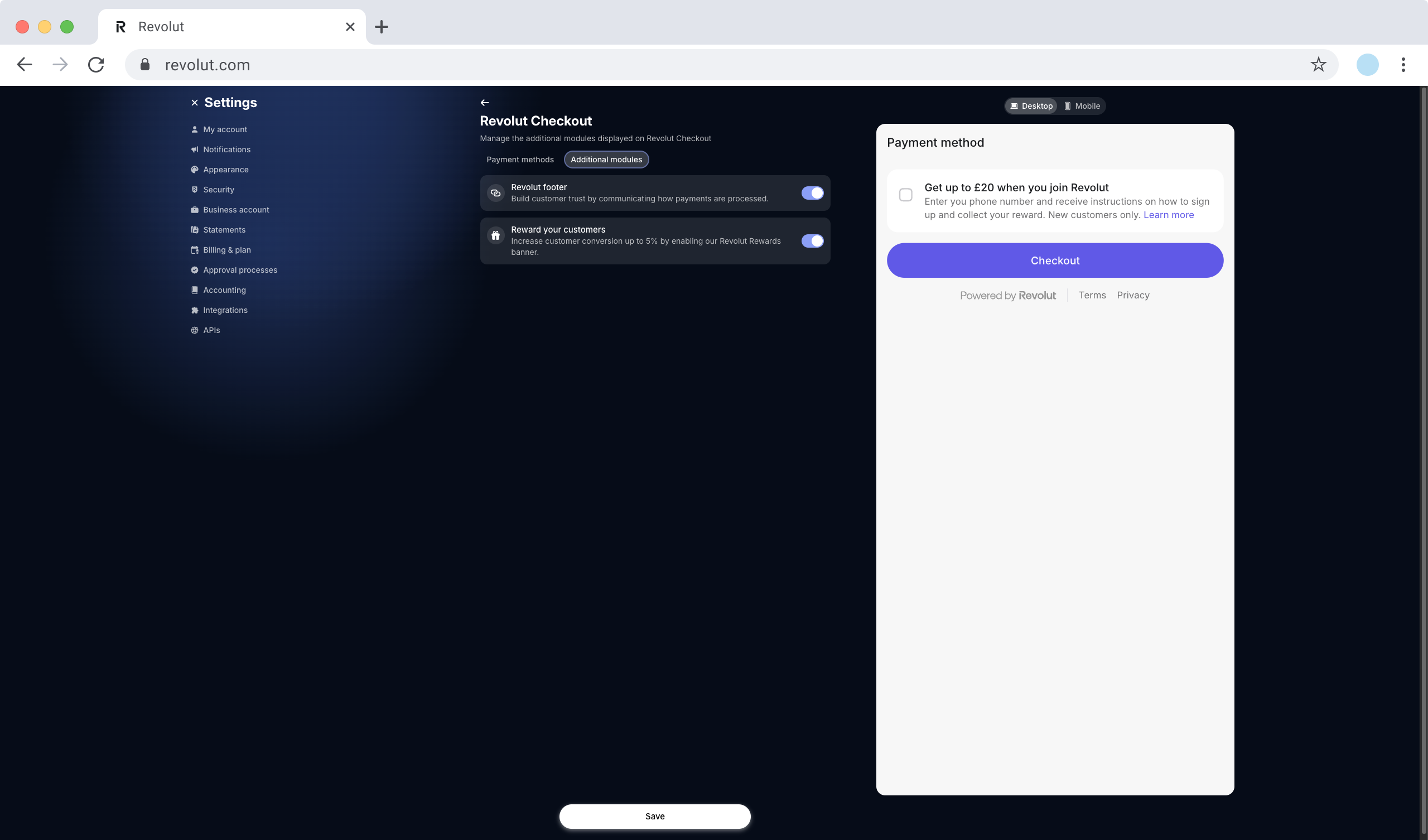
Revolut footer
Enable the Revolut footer to:
- Display terms and conditions links
- Show "Powered by Revolut" branding
- Build customer trust by showcasing secure payment processing
This module appears at the bottom of the checkout widget and communicates to customers that their payment is processed securely through Revolut's trusted infrastructure.
When to use:
- Building customer confidence in your payment process
- Meeting legal requirements for terms display
- Leveraging Revolut's brand recognition
Reward your customers
Enable Reward your customers to display a promotional checkbox offering rewards to new Revolut users:
- Customers who don't have a Revolut account see an offer to join
- Displays an incentive (up to 5% conversion boost via Revolut Rewards)
- Encourages customer registration after purchase
This module can increase customer conversion rates by providing additional value for completing the purchase.
When to use:
- You want to increase conversion rates
- You're targeting customers who may not be Revolut users yet
- You want to provide extra incentives during checkout
Changes to payment methods and modules take effect immediately after you save them. The widget will reflect your customisation the next time it loads, without requiring any code changes.
Examples
The examples below assume you added the DOM container to your webpage where you want to render the checkout widget:
<...>

<div id='checkout-container'></div>

<...>
Example with and without async/await
import RevolutCheckout from '@revolut/checkout'

// Initialise and mount the embedded checkout
const { destroy } = await RevolutCheckout.embeddedCheckout({
  publicToken: '<yourPublicApiKey>',
  mode: 'prod',
  locale: 'en', // Optional, defaults to 'auto'
  target: document.getElementById('checkout-container'),

  createOrder: async () => {
    // Call your backend here to create an order
    // For more information, see: https://developer.revolut.com/docs/merchant/create-order
    const order = await yourServerSideCall()
    return { publicId: order.token }
  },

  onSuccess() {
    // Handle successful payments
    console.log('Payment successful!')
    // Redirect to success page or show success message
  },

  onError(error) {
    // Handle payment errors
    console.error('Payment failed:', error)
    // Show error message to user
  },

  onCancel() {
    // Handle cancelled payments
    console.log('Payment was cancelled by user')
    // Re-enable checkout or show cancellation message
  }
})
Implementation checklist
Before deploying your implementation to your production environment, complete the checklist below to ensure everything works as expected, using the Merchant API's Sandbox environment.
To test in the Sandbox environment:
- Set the base URL of your API calls to
https://sandbox-merchant.revolut.com - Set the
modeparameter to'sandbox'when callingRevolutCheckout.embeddedCheckout()
General checks
- Checkout widget renders correctly in the intended DOM element.
- Your backend creates the order successfully when the checkout loads.
- Order
tokenis successfully fetched and passed to the widget. - All enabled payment methods appear in the widget (based on your Business Dashboard configuration).
- Customisations are displayed correctly (payment method order, additional modules like Revolut footer or reward banners).
- Checkout completes successfully with test cards for successful payment.
- Payment success callback (
onSuccess) is triggered as expected. - Payment error callback (
onError) is triggered for failed payments. - Payment cancellation callback (
onCancel) is triggered when user cancels. - Checkout handles errors gracefully:
- Failed payments with test cards for error cases.
- Network errors are handled appropriately.
Webhook verification
- Webhook endpoint is set up to receive order and payment updates.
- Your backend only fulfils orders after receiving the appropriate webhook confirmation (e.g.,
ORDER_COMPLETED). - Webhook signature verification is implemented for security.
Browser compatibility
- Checkout works correctly on major browsers (Chrome, Firefox, Safari, Edge).
- Checkout is responsive and works on different screen sizes.
- Mobile experience is tested on iOS and Android devices.
If your implementation handles all these cases as expected in Sandbox, test your implementation in production before going live. Once your implementation passes all the checks in both environments, you can safely deploy to production.
These checks only cover the implementation path described in this tutorial. If your application handles more features of the Merchant API, see the Merchant API: Implementation checklists.
Congratulations! You've successfully implemented Revolut Checkout and are ready to accept payments.