
Welcome to the GUI guide for creating Hosted Checkout Pages! This guide walks you through the process of creating payment links—a simple implementation path available directly from the Revolut Business dashboard—no coding required.
Payment links are one way to accept payments via the Revolut-hosted Checkout Page. This approach is perfect for merchants who prefer a visual interface and need to create payment links quickly for invoicing, one-off payments, or occasional transactions.
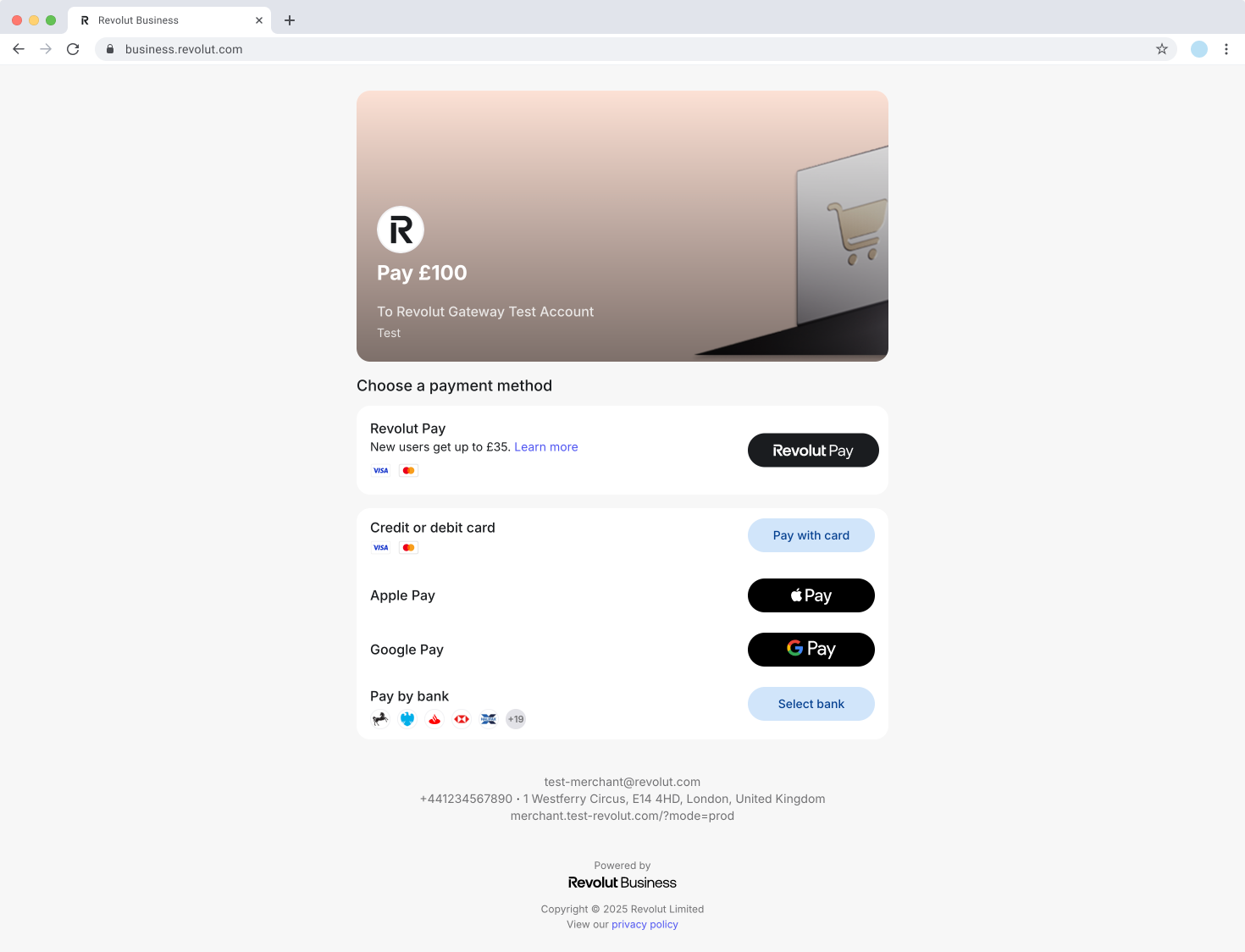
Looking for programmatic control? Check out the API integration guide for automated payment link creation and advanced features like custom redirects.
How it works
Creating Hosted Checkout Pages via Revolut Business is a no-code solution that works with these components:
- Revolut Business: A graphic user interface (GUI) where you create and manage payment links
- Hosted Checkout Page: Revolut's secure payment page where customers complete their payment
- Dashboard tracking: View payment status and history in real-time
Hosted Checkout Page refers to the complete checkout solution—the branded, secure payment page hosted by Revolut where your customers complete their purchases.
Payment links are the URLs you create that direct customers to your Hosted Checkout Page. Each link is a unique URL tied to a specific payment request (amount, description, etc.). You create and manage these links through the dashboard.
The payment flow is simple and straightforward:
- Log in to your Revolut Business dashboard.
- Navigate to Merchant > Payment links.
- Create a new payment link with amount and required details.
- Share the generated link with your customer (email, SMS, etc.).
- Track payment completion in your dashboard.
Payment links created via the dashboard redirect customers to Revolut's default confirmation pages after payment completion.
If you need to redirect customers to your own branded confirmation pages or implement custom post-payment workflows, you'll need to use the API integration method with the redirect_url parameter. This feature is only available via API and cannot be configured through the dashboard.
Implementation overview
This guide walks you through everything you need to accept payments via Hosted Checkout Pages:
- Create payment links: Set up payment links with custom amounts, advanced options, and share them with customers.
- Configure global settings: Set default expiry dates, customise checkout branding, and manage notifications.
- Manage your payment links: View, track, and control all your payment links from the dashboard.
Before you begin
Before you start this tutorial, ensure that you have completed the following step:
You don't need to generate API keys for this method, as everything is done through the dashboard interface.
Create payment links
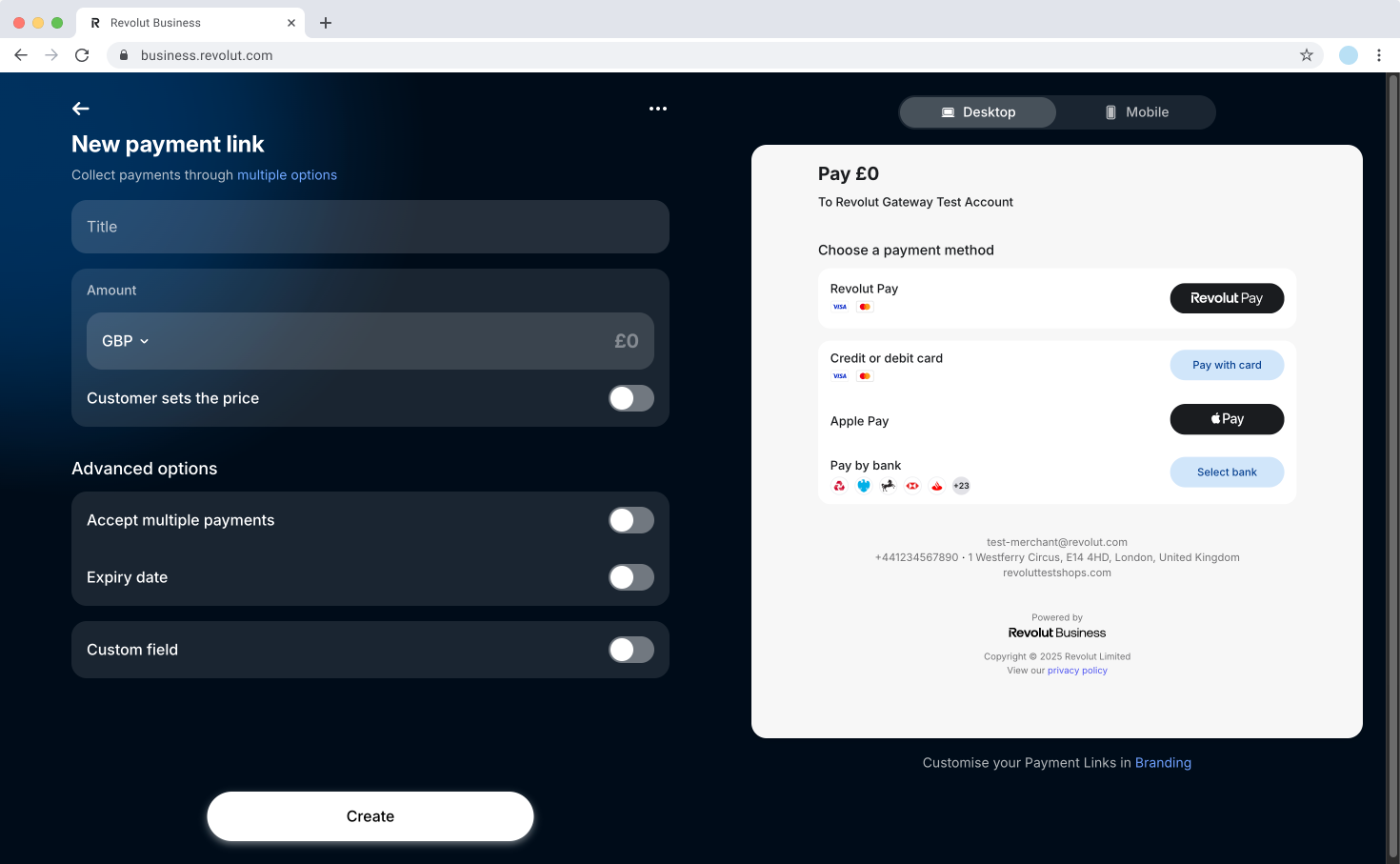
To create a payment link:
-
Log in to Revolut Business.
-
Navigate to Merchant > Payment link.
-
Click the Create link button.
-
Configure your payment details on the New payment link screen:
- Title (required): The title appears in the transaction description and helps you identify the payment in your dashboard.
- Amount: Select currency and enter the payment amount to create a payment link with fixed pricing.
- Customer sets price: Enable this toggle to let customers choose how much to pay (ideal for donations, tips, or pay-what-you-want scenarios)
- When enabled, customers see an extra step at checkout where they can enter the amount and add an optional note
- After entering details, they click Continue to checkout to proceed to the payment page
-
Optionally, configure Advanced options:
- Accept multiple payments: By default, payment links accept 1 payment then automatically switch from Active to Completed state. Enable this toggle to accept multiple payments from the same link.
- Payment limit: Specify the number of payments this link can accept (useful for fixed instalments, e.g., weekly payments). Without a limit, you can accept payments indefinitely until you manually deactivate the payment link.
- Expiry date: Enable to set a specific date when the link stops working. This overrides the default expiry date. Useful for time-limited offers or seasonal promotions.
- Custom field: Collect additional information from customers during checkout. Appears as a separate page before the payment page. Shows in your transaction overview with your chosen field name and the value entered by the customer.
- Accept multiple payments: By default, payment links accept 1 payment then automatically switch from Active to Completed state. Enable this toggle to accept multiple payments from the same link.
-
Check the Desktop and Mobile previews to see how your payment page appear to customers and verify everything looks as expected.
-
Click Create to generate your payment link.
-
A pop-up appears with sharing options. Choose your preferred method to share the link:
- Copy link: Copy the URL and paste it anywhere (SMS, messaging apps, social media, etc.).
- Send via email: Send the link directly from the dashboard to your customer's email.
- QR code: Display a QR code for in-person scanning or print marketing materials.
-
Complete the process:
- Click New payment link to create another payment link immediately, or
- Click Done to return to the Payment links page, where you can see your newly created link.
Configure global settings
Access global payment link settings from the Payment links page by clicking Settings.
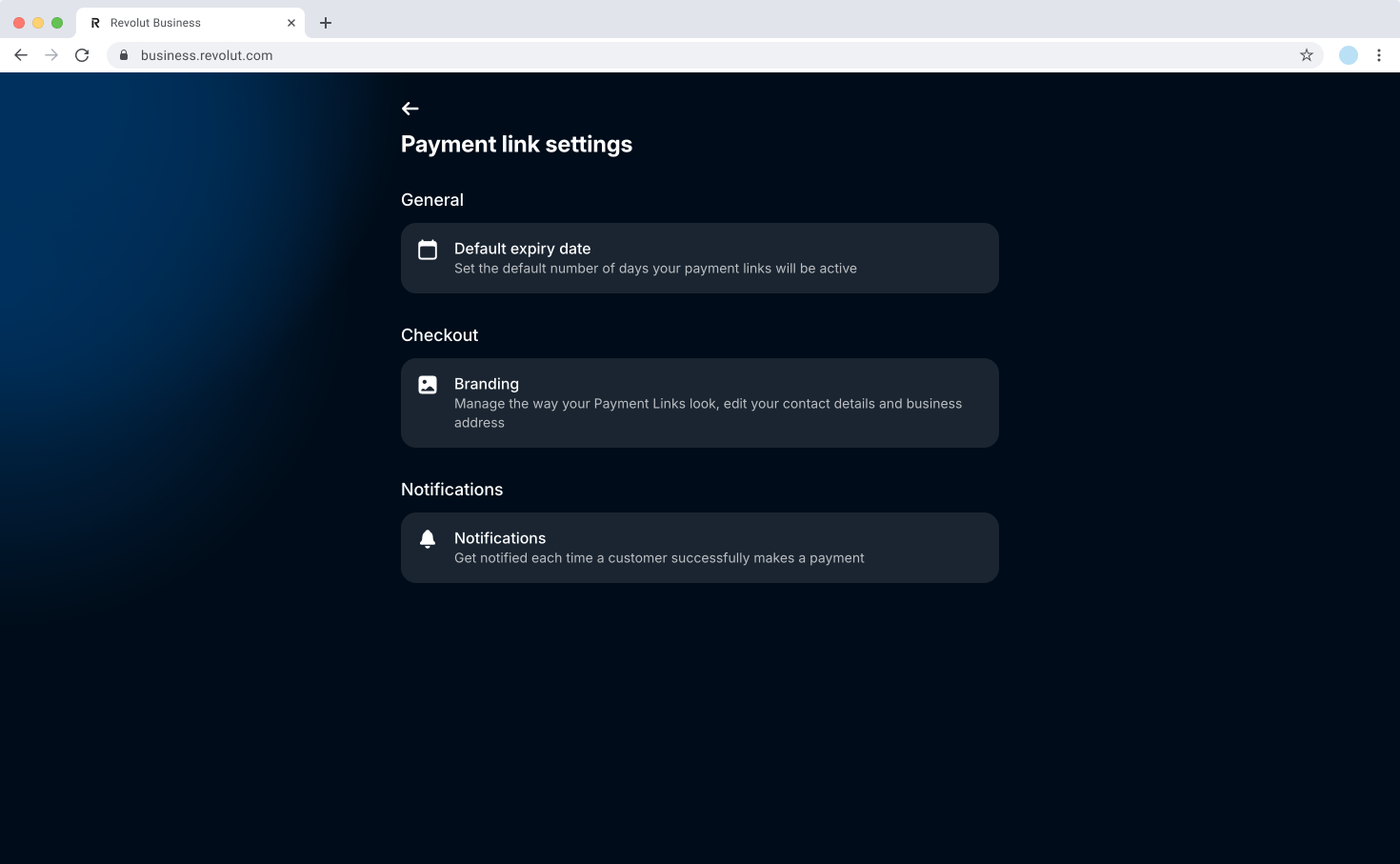
Default expiry date
Set the default number of days your payment links remain active. This applies to all new links unless you specify a different expiry date during link creation.
Branding
Create a branded checkout experience that builds customer trust and reinforces your business identity. A customised checkout page can increase conversion rates and make your business look more professional and established.
You can customise the following elements:
- Logo: Display your brand identity prominently
- Cover image: Add visual appeal with a banner image
- Button colour: Match your brand colours for consistency
- Business details: Show your website and contact information
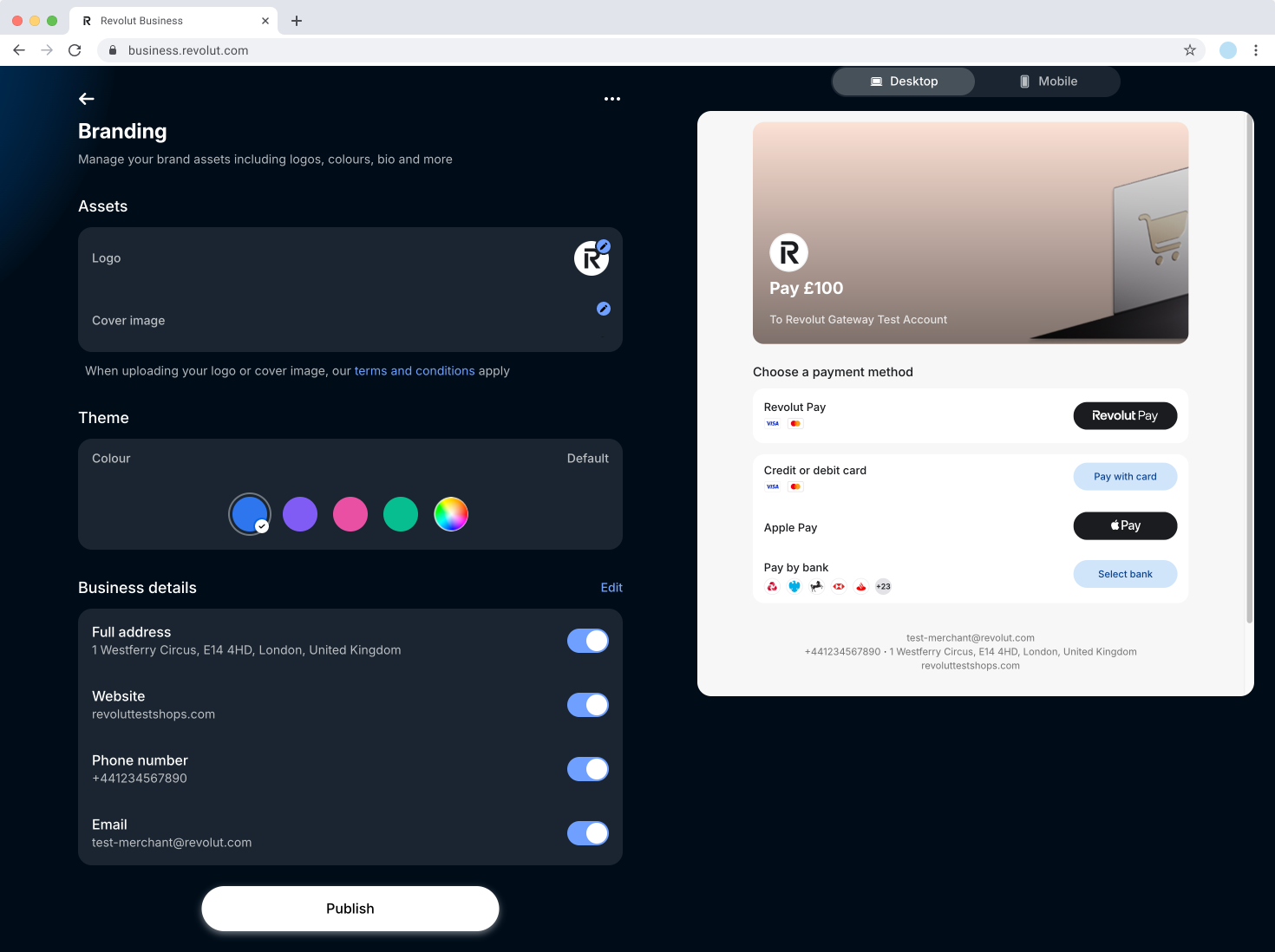
To customise your checkout page:
- Log in to the Revolut Business dashboard.
- Navigate to Merchant > Payment link.
- Click on Settings and choose Branding.
- Customise your checkout page using the available settings:
- Upload your logo
- Upload a cover image
- Choose the colour theme for payment buttons
- Edit your business details and toggle which ones to display on the checkout page
- Click Publish after uploading all your assets and setting up your checkout page.
Your branding customisation applies to all Hosted Checkout Pages created via both GUI and API methods. Once configured, all your customers will see your branded checkout experience.
Notifications
Configure email and push notifications for payment events:
- Opens the main Settings > Notifications menu.
- In the Payment links section, toggle notifications on or off.
- Choose to enable notification types: email, push.
- Get notified each time a customer pays via payment link.
Manage payment links
View all payment links
Navigate to Merchant > Payment links to see all links created via GUI.
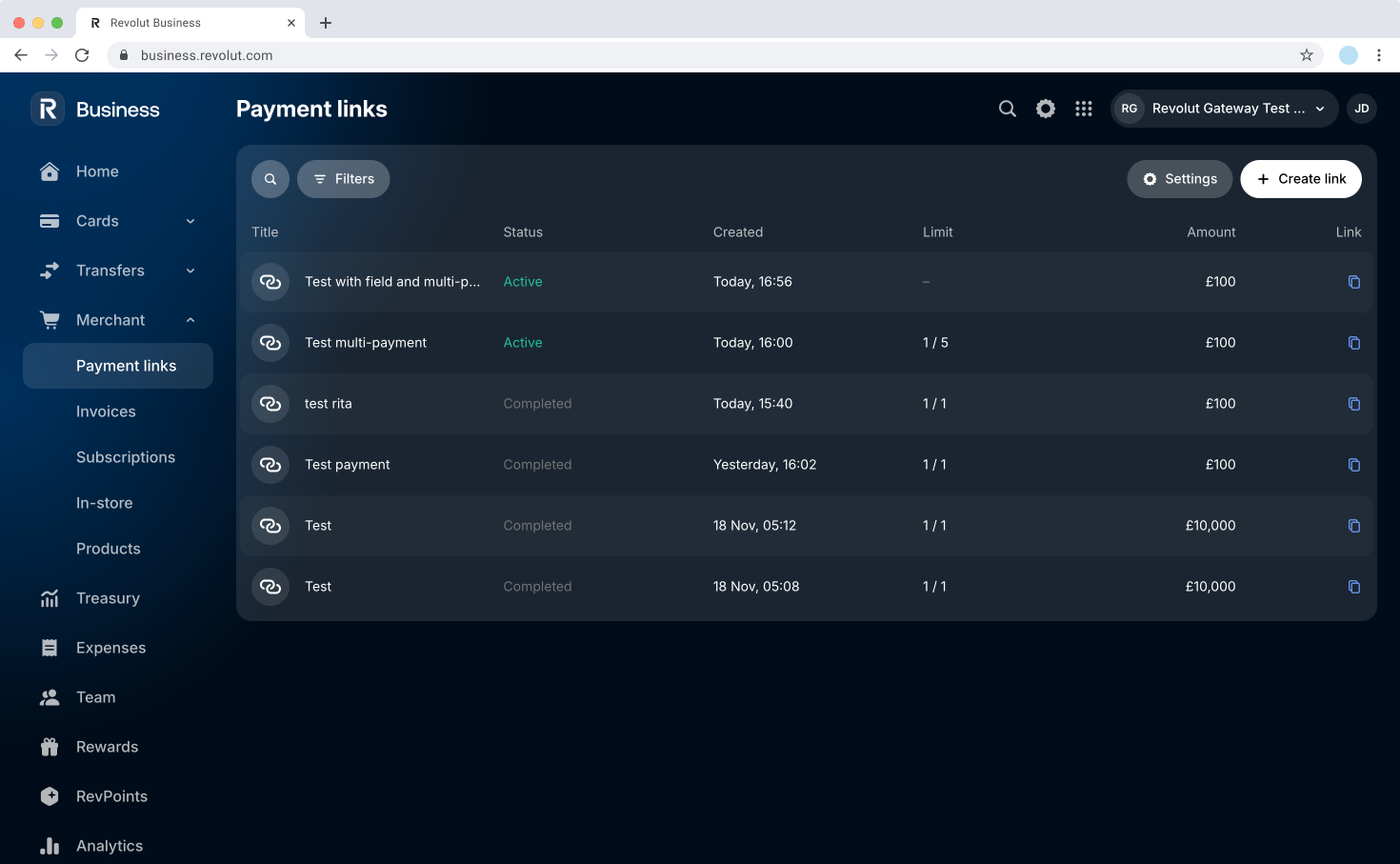
The list view displays:
- Title: Link name/description
- Status: Active, Cancelled, Completed, Expired, Paused
- Created: Creation date and time
- Limit: Payment limit for multi-payment links (e.g., "1/5" means 1 of 5 payments received)
- Amount: Link amount
- Link: Click to copy the payment link URL to your clipboard
Use Filters to narrow down links by status, date, or amount. Use to search for specific links by title.
Payment link overview
Click any link to open the overview panel with detailed information and actions.
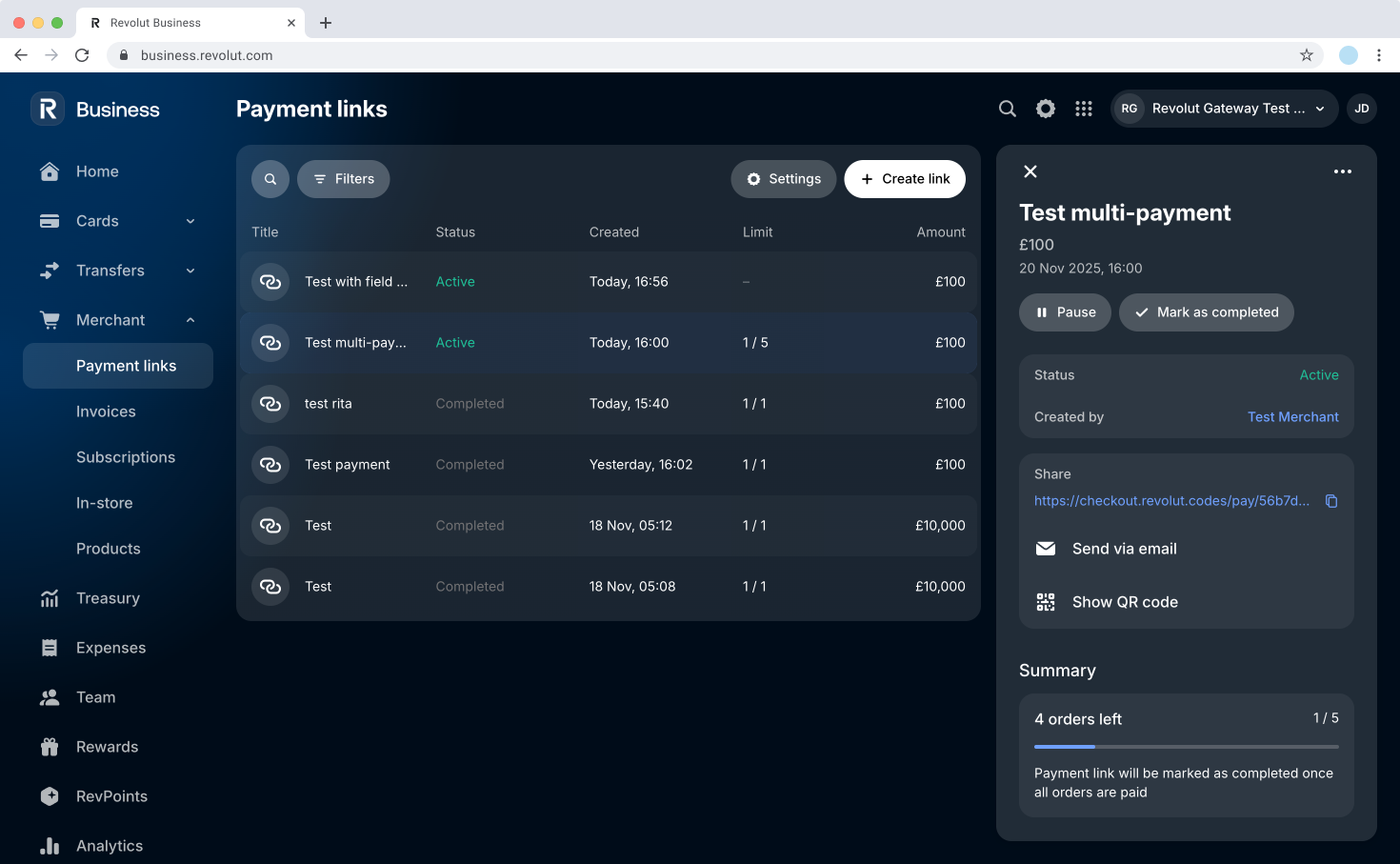
Link actions
Available actions vary based on the link's type and current status:
-
Active single-payment links:
- Edit: Modify link details such as title, amount, expiry date, or custom fields.
- Pause: Temporarily disable the link. Can be resumed to continue accepting payments.
- Cancel: Permanently deactivate the link and change status to Cancelled.
-
Active multi-payment links:
- Edit: Modify link details such as title, amount, expiry date, or custom fields
- Pause: Temporarily disable the link. Can be resumed to continue accepting payments.
- Mark as completed: Manually terminate the payment link and change status to Completed, even if payment limit hasn't been reached
-
Completed links: View only (read-only mode, no editing allowed). Link has expired, reached its payment limit, or was manually completed.
Link details
View key information about your payment link:
- Title
- Amount
- Creation date and time
- Status: Displays the current status of the link
- Created by: Team member who created the link
Share
Distribute your payment link through multiple channels:
- Copy link: Copy the URL to your clipboard
- Send via email: Email the link directly to your customer
- Show QR code: Display a QR code for scanning
Summary
Track payment progress and remaining capacity. The information displayed varies based on link type:
- Single-use links: Progress bar displays "1/1" once payment is completed
- Multi-payment links with limit: Progress bar shows payments received vs. total limit (e.g., "4 orders left, 1/5") with automatic completion note: "Payment link will be marked as completed once all orders are paid"
- Multi-payment links without limit: Completed orders counter and Order limit field showing "No limit"
Orders
View the complete transaction history for this payment link, including all successful payments and their details.
Link lifecycle and states
Payment links can have five states:
- Active: Link accepts payments. Can be edited, paused, or cancelled at any time.
- Paused: Temporarily disabled. Can be resumed to continue accepting payments. Customers see "This link is no longer active".
- Completed: Payment limit reached or manually completed. No longer accepts payments. Read-only mode.
- Cancelled: Permanently deactivated by the merchant. Cannot be reactivated.
- Expired: Link reached its expiry date. No longer accepts payments.
Track payment completion
Monitor payment status in real-time:
- Payment links list: See status updates instantly as customers pay
- Overview panel: View detailed transaction history for each link
- Email notifications: Receive alerts for completed payments (if enabled)
- Dashboard: Check payment activity in the Merchant dashboard
What's next
- Learn about the API approach for automated payment link creation
- Explore the Merchant API for advanced workflows
- Use our no-code plugins for popular e-commerce platforms
- Learn about other payment methods like Revolut Pay