
Welcome to the implementation guide for Revolut Pay on Android! This page provides a comprehensive walkthrough for integrating Revolut Pay into your Android application.
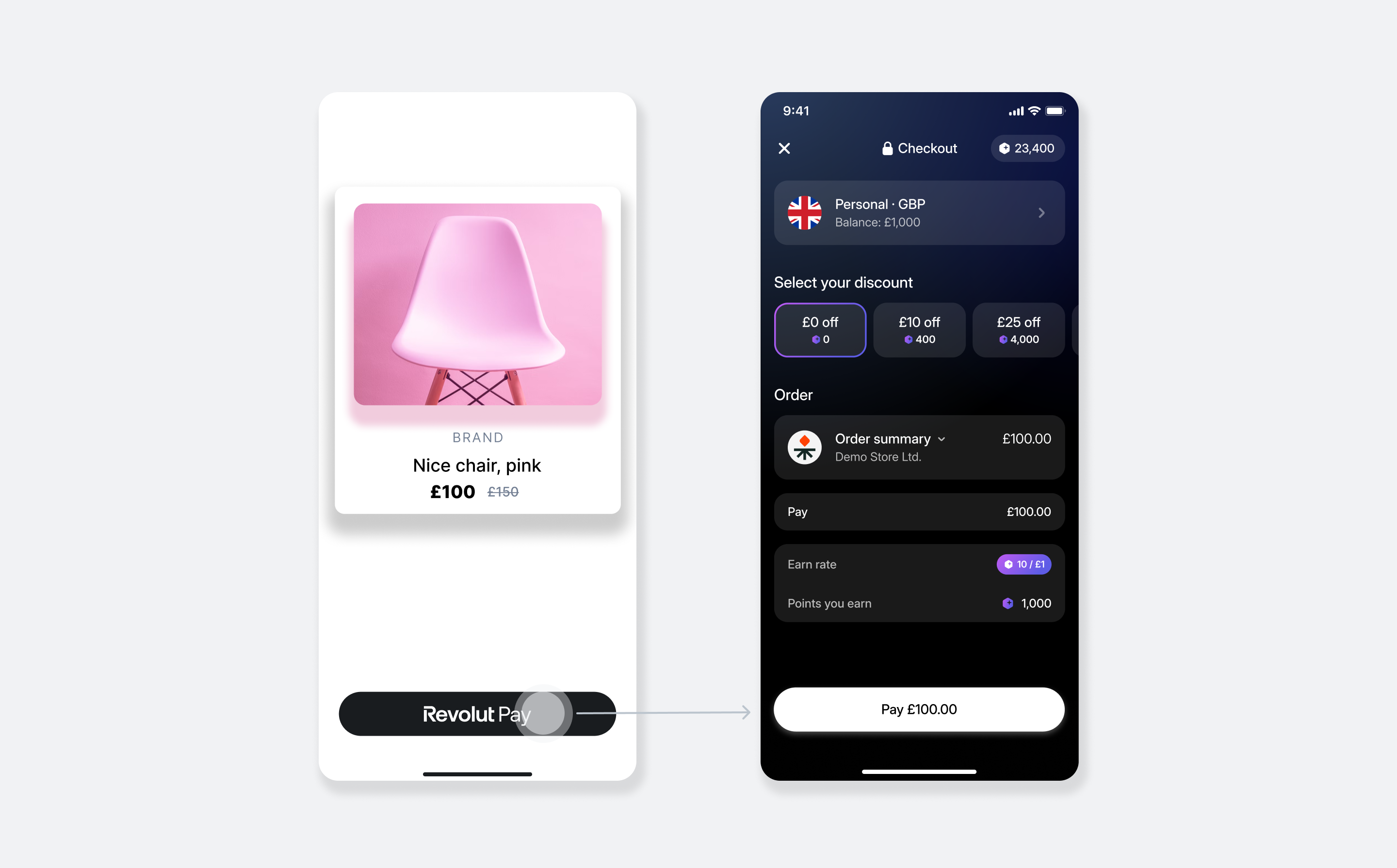
How it works
From an implementation perspective, integrating Revolut Pay into your Android app with the Revolut Pay SDK involves the following components:
- Server-side: An endpoint on your server to securely create an order with the Revolut Merchant API.
- Client-side: Your Android app uses the Revolut Pay SDK to display the Revolut Pay button, collect payment details, and handle the user flow.
- Endpoint for webhooks: Optionally, you can set up an endpoint to receive webhook events from the Merchant API to track the payment lifecycle. For more information, see: Use webhooks to keep track of the payment lifecycle.
Available versions
The Revolut Pay Android SDK is available in two variants:
Both SDK variants have a binary size of approximately 656 KB but may add approximately 5 MB to your app's final APK size due to dependencies.
| SDK | Description |
|---|---|
| Revolut Pay Native (recommended) | Initialises Revolut Pay UI within your app. If the Revolut retail app is installed, a fully native payment flow is launched. If it is not installed, the SDK falls back to a guest checkout in a WebView. Requires sharing your app's SHA-256 certificate fingerprint with Revolut (see Step 2.2). |
| Revolut Pay Lite | Triggers a redirect to the Revolut retail app to make the payment. If the Revolut retail app is not installed, the SDK falls back to a guest checkout in a WebView within your app. |
Revolut Pay Native and Revolut Pay Lite follow the same version numbering - the latest version of both is 3.2.1. Both also support savePaymentMethodForMerchant for Merchant Initiated Transactions (MIT).
The payment flow for each variant:
With Revolut Pay Native, the customer never leaves your app. If the Revolut retail app is installed, the SDK launches a native payment flow directly within your app. If it is not installed, the SDK falls back to a guest checkout in a WebView within your app.
- The customer taps the Revolut Pay button in your app.
- Your app obtains an order
tokenfrom your server and passes it to the SDK to initialise the payment. - The SDK checks whether the Revolut retail app is installed:
- If installed: The SDK launches a native payment flow directly inside your app. The customer is not redirected to the Revolut retail app.
- If not installed: The SDK opens a guest checkout in a WebView inside your app.
- The customer reviews and authorises the payment.
- The SDK processes the payment and returns the result to your app.
- Optionally, your server receives webhook notifications about each event you're subscribed to. For more information, see: Use webhooks to keep track of the payment lifecycle.
For more information about the order and payment lifecycle, see: Order and payment lifecycle.
Implementation overview
Check the following high-level overview of how to implement Revolut Pay in your Android app.
- Set up an endpoint for creating orders
- Configure your Android project
- Initialise the SDK
- Implement the payment flow
- Verify payments on your backend
Before you begin
Ensure you have:
- A Revolut Merchant account
- Your Merchant API keys
- (Revolut Pay Native only) Your app's SHA-256 certificate fingerprint shared with Revolut — required before Revolut Pay Native can verify your app's identity
Implement Revolut Pay on Android
1. Set up an endpoint for creating orders
When your customer enters the checkout screen, your app needs a unique, single-use token that represents the order. This token can only be created on your server by making a secure call to the Revolut Merchant API.
This server-side endpoint is a mandatory security requirement. Your secret API key must never be exposed in your Android application.
When your checkout screen loads, your app should call this endpoint to pre-fetch the order token. Your endpoint is responsible for:
- Receiving the checkout details (e.g.,
amount,currency) from your client-side request. - Securely calling the Merchant API: Create an order endpoint with the checkout details.
- Receiving the order object, including the public
token, in the API response. - Returning the
tokenfrom the response to your app.
Your app will then store this token. When the customer taps the Revolut Pay button, this token will be passed to the SDK to start the payment process, as shown in a later step.
Below is an example of the JSON response your endpoint will receive from the Merchant API after successfully creating an order. The crucial field to extract and return to your app is the token.
{
  "id": "6516e61c-d279-a454-a837-bc52ce55ed49",
  "token": "0adc0e3c-ab44-4f33-bcc0-534ded7354ce",
  "type": "payment",
  "state": "pending",
  "created_at": "2023-09-29T14:58:36.079398Z",
  "updated_at": "2023-09-29T14:58:36.079398Z",
  "amount": 1000,
  "currency": "GBP",
  "outstanding_amount": 1000,
  "capture_mode": "automatic",
  "checkout_url": "https://checkout.revolut.com/payment-link/0adc0e3c-ab44-4f33-bcc0-534ded7354ce",
  "enforce_challenge": "automatic"
}2. Configure your Android project
This section covers the one-time setup tasks required to prepare your Android project for the SDK.
2.1 Install the SDK
Check the Available versions section to determine which SDK variant is right for your needs.
If you're upgrading the SDK version to 3.2.0 or later, your app build may fail due to duplicate OSGI manifest resources.
For more information about how to fix this issue, see Revolut Pay Android SDK: Troubleshooting.
-
Add the
mavenCentral()repository to your project-levelbuild.gradlefile if it's not already there:allprojects { repositories { mavenCentral() } } -
Add the Revolut Pay Native dependency to your module-level
build.gradlefile:implementation 'com.revolut.payments:revolutpay:3.2.1' -
Sync your project with the Gradle files.
The minimum supported Android SDK version is API 24 (Android 7.0, Nougat).
2.2 Set up your SHA-256 certificate fingerprint
This step is only required when implementing Revolut Pay Native.
To enable the native Revolut Pay SDK to verify your app's identity and deliver a secure, seamless payment experience, you must share your app's SHA-256 certificate fingerprint with Revolut.
-
Obtain your SHA-256 certificate fingerprint. Use one of the following methods:
-
Run the Gradle signing report from your project root and locate the
SHA-256value in the output for your release variant:./gradlew signingReport -
If you use Google Play App Signing, find your fingerprint in the Google Play Console under Setup > App integrity > App signing. For more information, see the Google Play developer documentation.
-
-
Share your fingerprint with Revolut. Email your SHA-256 certificate fingerprint to merchant-integration@revolut.com.
Use the fingerprint from your release keystore, not your debug keystore. A mismatch between the registered and actual fingerprint will prevent Revolut Pay Native from working correctly.
2.3 Configure the App Manifest
You need to declare necessary permissions and app-querying capabilities in your AndroidManifest.xml.
-
Add internet permission: The SDK requires network access.
<uses-permission android:name="android.permission.INTERNET" /> -
Declare Revolut app query: To allow the SDK to check if the Revolut app is installed, add the
<queries>element.<queries> <package android:name="com.revolut.revolut" /> </queries>
The <queries> entry is only required when implementing Revolut Pay Lite. Revolut Pay Native does not require it.
2.4 Set up a deep link for redirection
This step is only required when implementing Revolut Pay Lite. Revolut Pay Native does not redirect the customer outside your app and does not require a deep link.
A deep link is required for the Revolut app to redirect the user back to your app after payment authorisation.
In your AndroidManifest.xml, add an <intent-filter> to the activity that will handle the result.
<activity
    android:name=".MainActivity"
    android:launchMode="singleTop">
    <intent-filter>
        <action android:name="android.intent.action.VIEW" />
        <category android:name="android.intent.category.DEFAULT" />
        <category android:name="android.intent.category.BROWSABLE" />
        <data
            android:host="payment-return"
            android:scheme="myapp" />
    </intent-filter>
</activity>- Replace
myappandpayment-returnwith a unique scheme and host for your app. - The activity
launchModemust besingleTopto ensure the existing activity instance receives the result instead of creating a new one.
3. Initialise the SDK
In your application's entry point (e.g., the onCreate method of your Application class), initialise the Revolut Pay SDK with your public API key.
import com.revolut.payments.RevolutPaymentsSDK

class MyApplication : Application() {
    override fun onCreate() {
        super.onCreate()
        RevolutPaymentsSDK.configure(
            RevolutPaymentsSDK.Configuration(
                merchantPublicKey = "<yourPublicApiKey>",
                environment = RevolutPaymentsSDK.Environment.SANDBOX // Or .PRODUCTION
            )
        )
    }
}This configures the SDK with the environment for testing or live payments. The deep link URI will be provided later when creating payment orders.
4. Implement the payment flow
Now, you will add the Revolut Pay button to your UI and connect it to your backend to handle payments.
4.1 Add the Revolut Pay button
You can add the Revolut Pay button to your checkout screen either programmatically or via XML layout.
Create an instance of the button in your activity or fragment code.
import com.revolut.payments.RevolutPaymentsSDK
import com.revolut.revolutpay.api.revolutPay
import com.revolut.revolutpay.api.button.ButtonParams
import com.revolut.revolutpay.api.button.Radius
import com.revolut.revolutpay.api.button.Size
import com.revolut.revolutpay.api.button.Variant
import com.revolut.revolutpay.api.button.VariantModes
import com.revolut.revolutpay.api.button.BoxText

// ...

val buttonParams = ButtonParams(
    buttonSize = Size.LARGE,
    radius = Radius.MEDIUM,
    variantModes = VariantModes(lightMode = Variant.DARK, darkMode = Variant.LIGHT),
    boxText = BoxText.NONE
)

val revolutPayButton = RevolutPaymentsSDK.revolutPay.provideButton(
    context = this,
    params = buttonParams
)

// Add the button to your view hierarchy
your_layout.addView(revolutPayButton)For more information on available parameters or customising the button's appearance, see: Revolut Pay Android SDK and Revolut Pay button guidelines.
4.2 Set up payment controller and button interaction
Now, let's wire everything up. You'll create a payment controller to manage the payment process and then configure your Revolut Pay button to use this controller when tapped.
Create the payment controller
First, create an instance of the paymentController. This component is responsible for launching the payment flow and returning the final result (success, failure, or user cancellation) to your app.
The payment controller must be created unconditionally during Activity or Fragment initialisation.
This ensures that the result callback is always correctly registered, and that the payment result is handled properly even after configuration changes.
import com.revolut.payments.RevolutPaymentsSDK
import com.revolut.revolutpay.api.PaymentResult
import com.revolut.revolutpay.api.order.OrderParams
import com.revolut.revolutpay.api.revolutPay
import androidx.core.net.toUri

// Create payment controller in your Activity or Fragment
private val paymentController = RevolutPaymentsSDK.revolutPay.createController(this) { paymentResult ->
    when (paymentResult) {
        is PaymentResult.Success -> {
            // Payment successful - update your UI
            showSuccessMessage()
        }
        is PaymentResult.UserAbandonedPayment -> {
            // User cancelled the payment
            showCancelledMessage()
        }
        is PaymentResult.Failure -> {
            // Payment failed - show error and log details
            showErrorMessage()
            Log.e("RevolutPay", "Payment failed", paymentResult.exception)
        }
    }
}Configure the Revolut Pay button
With the controller ready, you can configure the button's behaviour, also within onCreate() or onViewCreated(). This involves two main actions:
- Binding the payment state: This links the button's appearance (e.g., showing a loading spinner) to the controller's current state automatically.
- Setting a click listener: This defines the action to take when the user taps the button—fetching the order
tokenfrom your backend and starting the payment.
// In your Activity/Fragment's onCreate() or onViewCreated()

// 1. Bind the button's loading state to payment controller's state
revolutPayButton.bindPaymentState(paymentController, this)

// 2. Set the button's click listener to start the payment
revolutPayButton.setOnClickListener {
    // Show a loading indicator on the button
    revolutPayButton.showBlockingLoading(true)

    viewLifecycleOwner.lifecycleScope.launch {
        try {
            // Call your backend to get the order token
            val orderToken = fetchOrderTokenFromBackend()

            // Start the payment with the token (and other order details)
            paymentController.pay(
                OrderParams(
                    orderToken = orderToken,
                    returnUri = "myapp://payment-return".toUri(), // Must match your deep link from step 2.4
                    requestShipping = false, // Set to true for Fast checkout
                    savePaymentMethodForMerchant = false, // Set to true for MIT
                    customer = null // Optional customer details
                )
            )
        } catch (e: Exception) {
            // Handle any errors during the token fetch
            revolutPayButton.showBlockingLoading(false)
            showErrorMessage()
        }
    }
}Implement fetchOrderTokenFromBackend()
In the code above, fetchOrderTokenFromBackend() is a placeholder for a function you must create. This function's job is to make a network request to the server endpoint you built in Step 1. It sends the order details (like amount and currency) to your server and gets the unique order token in return.
Because this is a network operation it must be performed off the main UI thread. The example uses lifecycleScope.launch (a Kotlin Coroutine) to handle this, which is the recommended approach.
4.3 Handle deep link redirect
This step is only required when implementing Revolut Pay Lite. With Revolut Pay Native, the customer never leaves your app, so no deep link redirect handling is needed.
When using Revolut Pay Lite, after the customer authorises the payment in the Revolut retail app, they are redirected back to your app using the deep link you configured in Step 2.4.
You need to catch this redirect in the Activity you configured with the <intent-filter>. To do this, override the onNewIntent() method and pass the incoming URI to the Revolut Pay SDK for processing.
import com.revolut.payments.RevolutPaymentsSDK
import com.revolut.revolutpay.api.revolutPay

override fun onNewIntent(intent: Intent?) {
    super.onNewIntent(intent)
    intent?.data?.let { uri ->
        // Pass the deep link URI to the Revolut Pay SDK for processing
        RevolutPaymentsSDK.revolutPay.handle(uri)
    }
}The SDK processes this URI internally. You don't need to parse it yourself. The final PaymentResult is automatically delivered to the paymentController callback you configured in Step 4.2.
The callbacks are executed on the main thread. For network operations like creating an order, ensure you switch to a background thread (e.g., using Kotlin Coroutines).
5. Verify payments on your backend
While the PaymentResult callback is useful for updating your app's UI (e.g., showing a "Thank you" screen), you must never use it to confirm the payment or fulfill the order.
The delivery of the client-side result isn't guaranteed; a user could lose network connection or close the app before the callback fires. Your server-to-server webhooks are the only guaranteed source of truth for the payment status.
Set up a webhook listener on your server. Always wait for a successful payment event webhook (e.g., ORDER_COMPLETED) before capturing funds, shipping goods, or granting access to services.
For more information, see: Use webhooks to keep track of the payment lifecycle.
Advanced features
You can enable additional features to enhance the customer experience and boost your conversion rates.
Fast checkout and Merchant Initiated Transactions (MIT)
You can configure the payment session to either collect customer shipping details or save their payment method future use. These options are configured in the OrderParams when you initiate the payment.
- Fast checkout: To collect shipping details via Revolut Pay, set
requestShipping = truein yourOrderParams. This requires your backend to support the Fast checkout flow. See the Fast Checkout guide for details. - Merchant Initiated Transactions (MIT): To save a customer's payment method for future use (e.g., subscriptions), set
savePaymentMethodForMerchant = truein yourOrderParams. See our guide on charging a saved payment method for details.
Fast checkout and MIT are mutually exclusive. You can enable one or the other, but not both in the same transaction.
savePaymentMethodForMerchant is supported by both Revolut Pay Native and Revolut Pay Lite.
Promotional banner
You can add a promotional banner to your order confirmation or "thank you" screen to offer rewards to new customers who sign up for a Revolut account after checkout.
We recommend implementing the promotional banner. Analysis has shown that having the widget can increase conversion to payment by ~5%.
To add the banner, call the RevolutPaymentsSDK.revolutPay.providePromotionalBannerWidget(context: Context, params: PromoBannerParams) method. This requires PromoBannerParams, which includes the transactionId from your server.
// In your order confirmation Activity (e.g., OrderConfirmationActivity.kt)

import com.revolut.revolutpay.api.promobanner.Currency
import com.revolut.revolutpay.api.promobanner.Customer
import com.revolut.revolutpay.api.promobanner.DateOfBirth
import com.revolut.revolutpay.api.promobanner.PromoBannerParams
import com.revolut.revolutpay.api.promobanner.CountryCode
import com.revolut.payments.RevolutPaymentsSDK
import com.revolut.revolutpay.api.revolutPay

class OrderConfirmationActivity : AppCompatActivity() {

    override fun onCreate(savedInstanceState: Bundle?) {
        super.onCreate(savedInstanceState)
        setContentView(R.layout.activity_order_confirmation)

        // 1. Get the order token you passed to this activity after a successful payment.
        // This is the `token` from the order object you received from your server in Step 1.
        val orderIdFromServer = intent.getStringExtra("ORDER_ID") ?: ""

        // 2. Define the parameters for the banner.
        val bannerParams = PromoBannerParams(
            transactionId = orderIdFromServer,
            paymentAmount = 1000, // Amount in the smallest currency unit (e.g., cents)
            currency = Currency.EUR,
            customer = Customer(
                name = "Example Customer",
                email = "example.customer@email.com",
                phone = "+441234567890",
                dateOfBirth = DateOfBirth(_day = 1, _month = 2, _year = 2000),
                country = CountryCode.GB,
            )
        )

        // 3. Create the banner widget.
        val promotionalBanner = RevolutPaymentsSDK.revolutPay.providePromotionalBannerWidget(
            context = this,
            params = bannerParams
        )

        // 4. Add the banner to your layout.
        // Assuming you have a LinearLayout with id 'banner_container' in your XML file.
        val bannerContainer = findViewById<LinearLayout>(R.id.banner_container)
        bannerContainer.addView(promotionalBanner)
    }
}Customise the banner's appearance (Optional)
To apply a custom theme to the banner, first define a style in a resource file:
<style name="RevolutPay_RevolutPayBanner">
    <item name="revolutPay_ColorAccent">#0666EB</item>
    <item name="revolutPay_ColorBackground">#F7F7F7</item>
    <item name="revolutPay_BannerCornerRadius">12dp</item>
    <item name="revolutPay_ComponentCornerRadius">12dp</item>
    <item name="revolutPay_StrokeWidth">0dp</item>
    <item name="revolutPay_StrokeColor">#BBC4CD</item>
</style>Then, reference this theme when creating the widget:
val promotionalBanner = RevolutPaymentsSDK.revolutPay.providePromotionalBannerWidget(
    context = this,
    params = bannerParams,
    themeId = R.style.RevolutPay_RevolutPayBanner
)Example
For a complete, working implementation, please refer to the example app included in our public SDK repository.
To run the example app:
- Clone the repository.
- Open the project in Android Studio, or your preferred IDE.
- Run the example app.
Implementation checklist
The Sandbox environment is designed to replicate the production environment's behaviour, with the key difference being the absence of app redirection due to the lack of a sandbox version of the Revolut retail app.
For more information about Revolut Pay payment flows in Sandbox, see: Test flows.
Before going live, use this checklist to test your integration in both the SANDBOX and MAIN (production) environments.
Project setup
-
mavenCentral()is inbuild.gradle. - SDK dependency is added (Revolut Pay Native or Revolut Pay Lite, depending on your chosen variant).
- (Revolut Pay Native only) SHA-256 certificate fingerprint has been obtained and shared with Revolut.
-
AndroidManifest.xml:INTERNETpermission is present. - (Revolut Pay Lite only)
AndroidManifest.xml:<queries>tag is present. - (Revolut Pay Lite only)
AndroidManifest.xml: Deep link<intent-filter>is configured with a unique scheme and host. - (Revolut Pay Lite only) The deep link activity has
launchMode="singleTop". - SDK is initialised with the correct public API key and environment in your
Applicationclass.
Payment flow
- The Revolut Pay button appears correctly on the checkout screen.
- Payment controller is created and configured with result handling.
- Tapping the button successfully calls your server to create an order and receives a
token. - (Revolut Pay Native) Test case 1: The payment flow completes via in-app WebView (guest checkout) when the Revolut app is not installed. This path behaves similarly to Revolut Pay Lite.
- (Revolut Pay Native) Test case 2: The payment flow completes when the Revolut app is installed (fully native in-app path, no redirection).
- (Revolut Pay Lite) Test case 1: The payment flow completes via in-app WebView when the Revolut app is not installed.
- (Revolut Pay Lite) Test case 2: The payment flow correctly redirects to the Revolut retail app and back when it is installed.
- A successful payment shows a success message in the UI via the
PaymentResult.Successcallback. - A failed payment shows an appropriate error message in the UI via the
PaymentResult.Failurecallback. - The user cancelling the payment flow is handled gracefully via the
PaymentResult.UserAbandonedPaymentcallback. - (Revolut Pay Lite only) Deep link handling is correctly implemented in your main activity's
onNewIntentmethod.
Backend verification
- Webhook endpoint is created and subscribed to events.
- Order fulfillment is triggered only by a
ORDER_COMPLETEDwebhook.