
Test 3D Secure (3DS) challenges, declines, and device fingerprinting in the Sandbox with dedicated test cards.
In the Sandbox environment, the 3DS simulator stands in for the customer's bank during every 3D Secure (3DS) step, so you can exercise all challenge and fingerprint (3DS Method) scenarios your integration must handle. This guide explains how the simulator works, and how to complete, automate, and verify each 3DS step.
How it works
In production, a full 3D Secure (3DS) challenge sends the customer to their bank's Access Control Server (ACS) page, where they verify the payment. In the Sandbox environment, the ACS page is replaced by the 3DS simulator - a Revolut-branded page that:
- describes the outcome the entered test card will produce
- provides a Continue button that completes the challenge
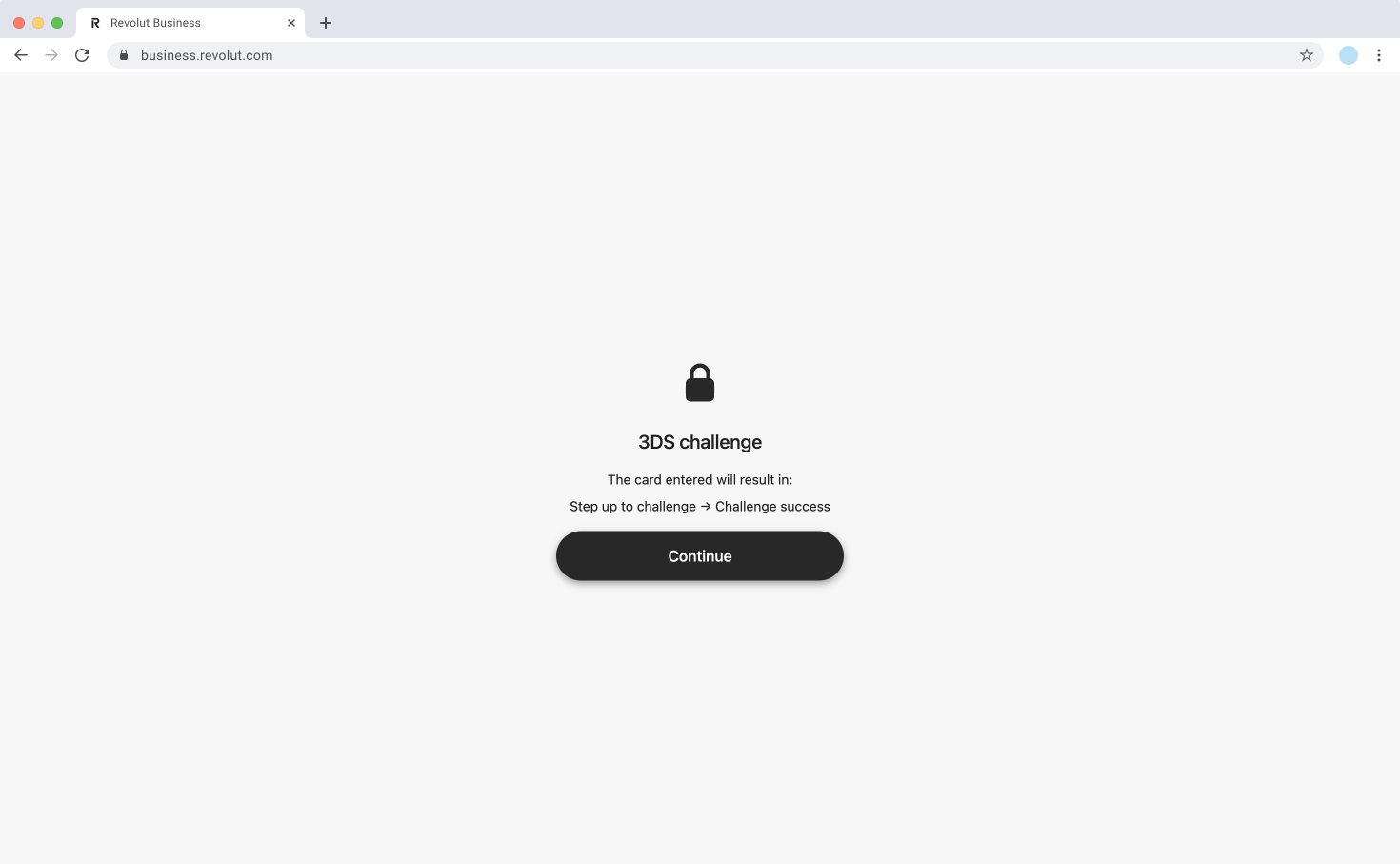
The simulator page is embeddable in an iframe, so it works with every integration that renders the ACS URL - SDKs, hosted pages, plugins, and custom card integrations alike.
Fingerprint (3DS Method) scenarios use the simulator as well - it provides the hidden payload your integration renders to run the silent device check.
Any card payment can trigger a challenge, including customer-initiated payments with a saved card. How the challenge is shown to the customer depends on your integration - no-code plugins inherit the behaviour of the integration they're built on:
| Integration | How the challenge appears |
|---|---|
| SDK integrations with a card payment flow | Rendered automatically by the widget or SDK |
| Hosted Checkout Page and payment links | Rendered automatically on the Revolut-hosted page |
| Custom card integrations | You render the acs_url yourself - in an iframe, a redirect page, or a pop-up window |
Not every flow can meet a challenge:
- Apple Pay isn't available in the Sandbox environment.
- Google Pay Sandbox outcomes are controlled by the order amount, not by test cards. For more information, see: Test payment flows.
- Click to Pay handles 3DS authentication inside the card network's own flow and isn't available in the Sandbox environment.
- Merchant-initiated payments, like recurring charges on saved cards, don't trigger challenges.
The difference also shows in what you can test: with a widget, hosted page, or plugin, testing challenges is mostly a visual check of the customer-facing flow. In a custom card integration, the challenge handling - rendering the acs_url, processing result callbacks, retrying declined payments - is your own code, and that's what the simulator exercises.
Before you begin
- A Sandbox account with Merchant API keys, unless your plugin connects via OAuth - then just enable the plugin's test mode. For more information, see: Set up a test environment.
- Your integration pointed at the Sandbox environment. For more information, see: Point integration at Sandbox.
- Test cards for the scenario you want to test. For more information, see: Test cards.
3DS test cards
The following test cards trigger the simulator's scenarios. For the complete list of Sandbox test cards - including cards that never trigger a 3DS step - see: Test cards.
3DS challenge scenarios
Use the following test cards to simulate payments that require the customer to complete a full 3DS challenge.
| Card PAN | Case | Decline reason | Payment state |
|---|---|---|---|
5555550079553105 | Payment authorised after the customer completes the 3DS challenge. | N/A | authorised |
5215674115127070 | Payment failed because the 3DS challenge failed. | technical_error | failed |
5555550029553106 | Payment failed because the 3DS challenge timed out. | customer_challenge_abandoned | failed |
5555550028553107 | Payment failed because the customer abandoned the 3DS challenge. | technical_error | failed |
5555550928553108 | Payment declined because the 3DS challenge was declined. | issuer_decline | declined |
Fingerprint (3DS Method) scenarios
Use the following test cards to simulate payments that start with the silent fingerprint (3DS Method) step.
| Card PAN | Case | Payment state |
|---|---|---|
5555550000043101 | Payment authorised after a successful fingerprint step, without a 3DS challenge. | authorised |
5555550079553105 | Payment authorised after a successful fingerprint step and a completed 3DS challenge. | authorised |
Test 3DS scenarios
Every 3DS test follows the same pattern: you start a card payment with a test card through your integration, the payment enters the 3DS step that card triggers - a full challenge completed on the simulator page, or a silent fingerprint (3DS Method) step - and once the step completes, the payment proceeds to the card's final outcome.
Follow the walkthrough for the scenario your test card triggers, then verify the result.
The challenge completes when Continue is clicked or automatically after 30 seconds - the payment proceeds to the same final outcome either way.
The flow is idempotent, so completing it twice has no side effects. If your tests don't render the challenge page, wait for the timeout to elapse before asserting on the final payment state.
Test a 3DS challenge scenario
- Start a card payment with a challenge test card through your integration.
- The payment enters the 3DS step, and the simulator page opens, describing the outcome the entered card will produce - automatically in widget, hosted, and no-code integrations. In a custom card integration, you render it yourself, as described below.
- Click Continue. The challenge completes immediately, and the payment transitions to the card's final state.
The payment attempt representing the ongoing payment flow - found in the order's payments[] array - enters the authentication_challenge state.
The authentication_challenge object has type: three_ds and an acs_url. Render the acs_url for the customer - in an iframe, a redirect page, or a pop-up window - and the simulator page opens.
Test a fingerprint (3DS Method) scenario
- Start a card payment with a fingerprint test card through your integration.
- The fingerprint step runs silently - the customer never sees it. Widget and SDK integrations render the hidden payload automatically; in a custom card integration, you render it yourself, as described below.
- After the fingerprint completes, the payment proceeds to the card's final outcome.
The payment attempt representing the ongoing payment flow - found in the order's payments[] array - enters the authentication_challenge state.
Its authentication_challenge object has type: three_ds_fingerprint and a base64-encoded fingerprint_html payload. Decode the fingerprint_html and render it in a hidden, sandboxed iframe on your page.
A fingerprint times out when its completion callback is never triggered - for example, when the fingerprint_html isn't rendered. To simulate a fingerprint timeout in the Sandbox, run a fingerprint test card and omit the rendering step. This applies to custom card integrations only: the widget, SDKs, and hosted pages render the fingerprint payload automatically.
In production, a fingerprint that isn't resolved within 15 seconds escalates the payment to a full 3DS challenge.
Verify the outcome
How you check the outcome depends on who creates the orders. If you create them via the Merchant API - with the widget, an SDK, or the Hosted Checkout Page - check the payment state directly:
- Poll the payment with Retrieve order details or Retrieve payment details, and check the returned
stateanddecline_reasonagainst the expected values in 3DS test cards. - If you use webhooks, expect an
ORDER_PAYMENT_AUTHENTICATION_CHALLENGEDevent when the payment enters theauthentication_challengestate, followed by an event with the final outcome. For more information, see: Using webhooks.
If a no-code tool manages payments for you - a plugin, or payment links created in the Revolut Business dashboard - watch the order in your shop's admin or the dashboard instead.
For the full list of possible decline reasons, see: Decline reasons.