
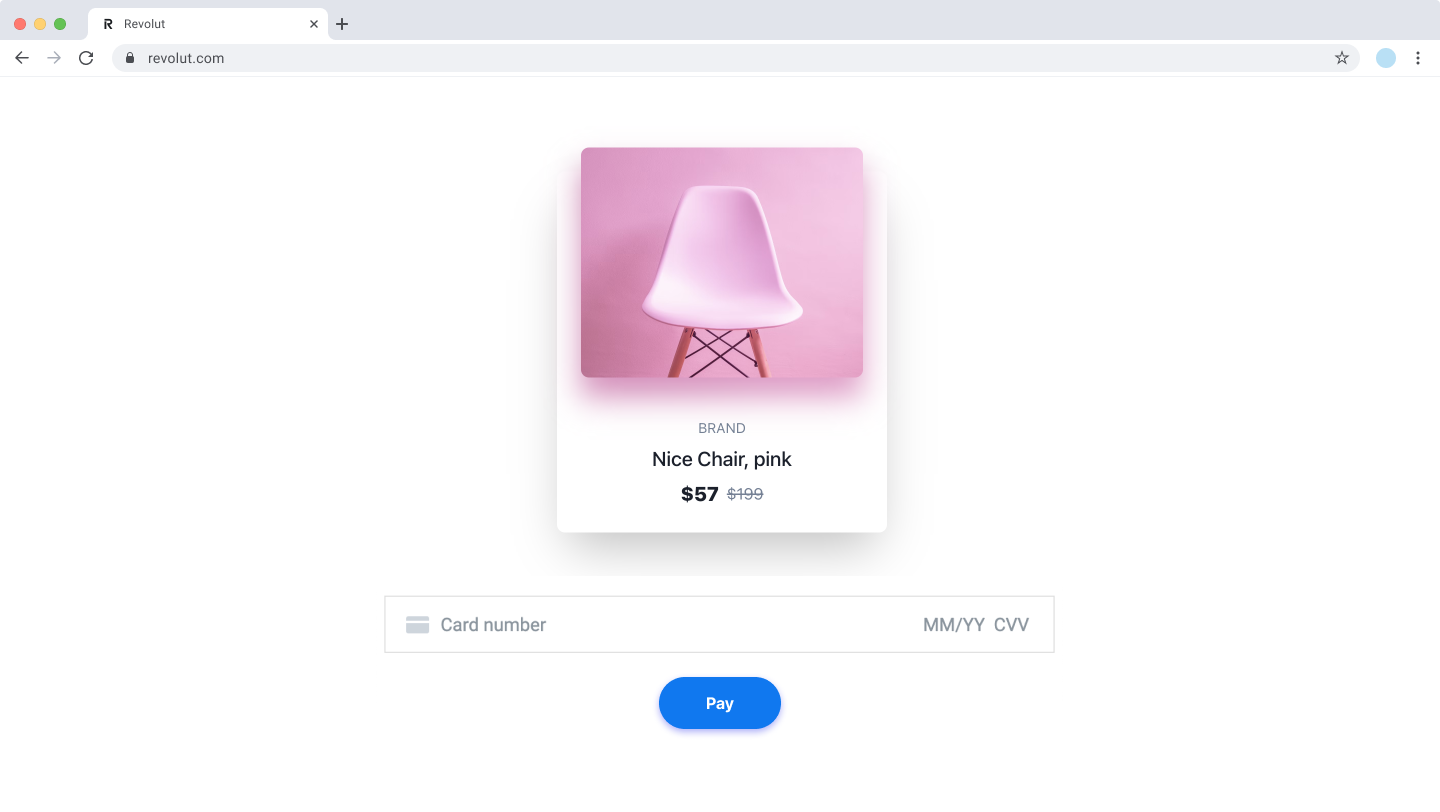
In this tutorial, we'll walk you through the implementation process of the Card field instance, powered by the Revolut Checkout Widget. The Card field allows your customers to enter their card details directly within your site, providing a seamless and secure checkout experience.
How it works
From an implementation perspective, the Card field widget works with the following components:
- Server-side: create an order and get
token, using the Merchant API: Create an order endpoint. - Client-side: the Revolut Checkout Widget uses the order data to initialise the
createCardFieldinstance. Then the widget collects card details and handles other actions like redirection or 3D Secure authentication. - Endpoint for webhooks: optionally, you can set up an endpoint which receives webhook events from the Merchant API to track the payment lifecycle. For more information, see: Use webhooks to keep track of the payment lifecycle.
The order and payment flow is similar to all card payment solutions:
- The customer goes to the checkout page.
- Your server uses the information from your client to create an order.
- Your client creates an instance of the
createCardFieldusing the data from the server. - The widget shows the card field, collects customer's card details, handles additional actions, and presents the payment result to the customer.
- Your server receives webhook notifications about each event you're subscribed to.
For more information about the order and payment lifecycle, see: Order and payment lifecycle.
Implementation overview
Check the following high-level overview on how to implement the Card field on your website:
- Install Revolut Checkout Widget
- Create an order and get token
- Initialise widget
- Configure and mount Card field
- Add promotional banner to the widget
Before you begin
Before you start this tutorial, ensure you have completed the following steps:
Implement the Card field
1. Install Revolut Checkout Widget
Before you begin, ensure the Revolut Checkout Widget is installed in your project. This widget is a necessary component to create and manage the card field. You can install the widget via your project's package manager.
npm install @revolut/checkoutyarn add @revolut/checkoutpnpm add @revolut/checkoutbun add @revolut/checkoutAlternatively, you can add the widget to your code base by adding the embed script to your page directly. To learn more, see: Installation.
2. Create an order and get token
When a customer decides to make a purchase on your website, using the Merchant API: Create an order endpoint, you'll need to create an order based on your customer's checkout and obtain a token.
This token represents the order and is used to initialise the Card field. The process of creating an order and receiving a token will vary based on your backend setup.
See an example response of an order created with minimal required parameters:
{
  "id": "6516e61c-d279-a454-a837-bc52ce55ed49",
  "token": "0adc0e3c-ab44-4f33-bcc0-534ded7354ce",
  "type": "payment",
  "state": "pending",
  "created_at": "2023-09-29T14:58:36.079398Z",
  "updated_at": "2023-09-29T14:58:36.079398Z",
  "amount": 5,
  "currency": "GBP",
  "outstanding_amount": 5,
  "capture_mode": "automatic",
  "checkout_url": "https://checkout.revolut.com/payment-link/0adc0e3c-ab44-4f33-bcc0-534ded7354ce",
  "enforce_challenge": "automatic"
}3. Initialise widget
Once you have the token, you can initialise the widget. Use the RevolutCheckout() function with the token to do this.
const orderToken = '<token>'

const { createCardField } = await RevolutCheckout(orderToken)

// Initialisation code will go here4. Configure and mount Card field
In this step, you'll integrate the Card field into your webpage and set up the necessary event listener for user interactions. To do this, you need to prepare two things:
- HTML structure: adding necessary HTML elements to your page where the Card field will be rendered
- JavaScript integration: adding necessary configuration to mount the Card field and set up event listening
4.1 HTML structure
Before initialising the Card field in JavaScript, you need to prepare your checkout page. You should define a dedicated HTML container where the Card field will be mounted.
You have multiple options to submit the card data. In this example we will use a submit button routed to the card field's submit() method. Here's an example:
<!-- ... -->

<div id="card-field"></div>
<button id="button-submit" type="button">Submit</button>

<!-- ... -->- The
<div>element withid="card-field"serves as the container for the card field on your page. This is where the card input form provided by the Revolut Checkout Widget will be dynamically inserted. - The
<button>element withid="button-submit"is used to submit the card details entered by the user. This is where you'll need to route event listening.
4.2 JavaScript integration
After setting up your HTML, use JavaScript to mount the card field into the specified container, configure its behaviour, and add additional settings.
To process card payments, provide the cardholder name, customer email, and billingAddress in the widget flow. You can pass these values in createCardField() or in submit().
Some sandbox payments may still succeed without billingAddress. Do not treat that as production-ready behaviour. For reliable production card acceptance, include name, email, and billingAddress in the widget flow.
| Field | Required for production | Where to provide it | Notes |
|---|---|---|---|
name | Yes | createCardField() or submit() | Use name for the cardholder name. There is no separate cardholderName field for card field. |
email | Yes | createCardField() or submit() | Provide the customer email used for the payment flow. |
billingAddress | Yes | createCardField() or submit() | Required for reliable production card acceptance. |
shippingAddress | No | createCardField() or submit() | Optional. If you provide it, include at least countryCode and postcode. |
Here is a basic example, without any additional configuration:
const orderToken = '<token>'

const { createCardField } = await RevolutCheckout(orderToken)

const cardField = createCardField({
  target: document.getElementById('card-field'),
  onSuccess() {
    // Do something to handle successful payments
    window.alert('Thank you!')
  },
  onError(error) {
    // Do something to handle payment errors
    window.alert(`Something went wrong. ${error}`)
  },
})

document
  .getElementById('button-submit')
  .addEventListener('click', function () {
    cardField.submit({
      name: 'Cardholder Name',
      email: 'example.customer@example.com',
      billingAddress: {
        countryCode: 'GB',
        postcode: 'EC1A 1BB',
        city: 'London',
        streetLine1: '1 Example Street',
      },
    })
})| Code snippet | Description |
|---|---|
<token> | Pass the order token when initialising the widget instance. You can get this value from the create order response. |
createCardField | Creates the card field and mounts it into the <div> specified by target. |
onSuccess | Runs when the payment succeeds. In this example it shows a "Thank you" alert. Use it for merchant-defined post-payment actions such as redirecting to a confirmation page or showing a success message. Any return value is ignored. |
onError | Runs when an error occurs. In this example it shows an alert with the error message. Use it for merchant-defined error handling such as redirecting to an error page or showing a custom error message. Any return value is ignored. |
<button id="button-submit" type="button">Submit</button> | Triggers cardField.submit() when clicked and starts the payment flow. |
name | Provide this in the widget flow as the cardholder name used for the payment. |
billingAddress | Include this in createCardField() or in submit(). This is required for reliable production card acceptance. |
email | Include this in the widget flow so the payment has the required customer contact details. |
For more details about the available parameters, see: Merchant Web SDK: Card field.
By following these steps, you have successfully integrated the Revolut Checkout Widget's Card field into your website. This setup allows customers to enter their card details securely and handles the transaction process seamlessly.
Remember to test this setup thoroughly in the Sandbox environment before going live. To help with testing check the following implementation checklist.
4.3 Additional settings
The createCardField function of the Revolut Checkout Widget offers a range of options that allow for enhanced customisation and functionality. Here are some key additional settings you can leverage:
-
Custom styling and classes:
- You can apply custom styles to various states of the card field (like default, focused, invalid, etc.) using the
stylesproperty in theoptionsobject. - Similarly, custom classes can be assigned to these states using the
classesproperty. This allows for greater control over the look and feel of the card input fields, making it easier to align with your website's design.
- You can apply custom styles to various states of the card field (like default, focused, invalid, etc.) using the
-
Saving payment methods:
-
The
savePaymentMethodForparameter allows you to save a customer's payment method used in the current payment session. You have the option to save a payment method either for thecustomeror themerchant. To learn more about customer and merchant initiated payments, see: Charge a customer's saved payment method.If you wish to save a customer's payment details using the Card field, you need to meet one of the following requirements:
- Have a customer object with
emailand assign it to the order by providingcustomer.id - Create a new customer with, at least,
customer.emailduring order creation
- Have a customer object with
-
-
Event handlers:
onSuccess,onError, andonValidationare event handlers that you can define to manage the different states of the payment process - from successful transactions to validation errors.onCancelcan be used to handle scenarios where the payment process is interrupted or cancelled by the user.
-
Localization:
- The
localeoption allows you to set the language for the card field, making it more accessible to users in different regions.
- The
-
Customer data and address information:
- Use the flat
name,email,phone,billingAddress, andshippingAddressfields increateCardField()orsubmit()to provide customer details. billingAddressis required for card payments and should be provided increateCardField()or insubmit().shippingAddressis optional. If you provide it, include at leastcountryCodeandpostcode.
- Use the flat
Providing additional customer data
In addition to handling card details, you can also provide additional information about your customer, such as the cardholder name, email, phone, and addresses for billing and shipping. For card payments, billingAddress should always be included in createCardField() or in submit().
This is done using the submit method of the card field instance, where you can pass a Meta object containing this information. Here is an example using the Meta object:
document.getElementById('button-submit').addEventListener('click', function () {
  var meta = {
    name: 'Cardholder Name',
    email: 'customer@example.com',
    phone: '+441234567890',
    billingAddress: {
      countryCode: 'US',
      region: 'CA',
      city: 'San Francisco',
      postcode: '94105',
      streetLine1: '123 Market St',
      streetLine2: 'Suite 100',
    },
    shippingAddress: {
      countryCode: 'US',
      region: 'CA',
      city: 'San Francisco',
      postcode: '94105',
      streetLine1: '123 Market St',
      streetLine2: 'Suite 100',
    },
  }

  cardField.submit(meta)
})In this example, when the submit button is clicked, the submit method is called with a meta object containing the cardholder name, customer email, phone, and address details. This allows you to capture the customer information needed for the transaction. You can route a form on your client-side page to pass this data to the widget.
By leveraging these additional settings and the ability to provide extended customer data, the Revolut Checkout Widget's createCardField instance becomes a powerful tool in creating a highly customisable and functional checkout experience on your website.
5. Add promotional banner to the widget
You can use the RevolutCheckout.upsell module to display the Revolut upsell widget during checkout and drive customers to join Revolut. Use the banners to offer rewards to customers who create a new Revolut account after checkout.
We recommend implementing the upsell widget. Analysis has shown that having the upsell widget can increase conversion to payment by ~5%.
This section describes how you can display the promotional banner with the card field. Similarly to the card widget, to do this, you need to prepare two things:
- HTML structure: adding necessary HTML elements to your page where the promotional widget will be rendered
- JavaScript integration: adding necessary configuration to initialise the upsell module and mount the banner
For more information about the upsell module, see: Merchant Web SDK: Promotional widgets.
5.1 HTML structure
To display the Promotional banner on your checkout page, you should define a dedicated HTML container where the widget will be mounted.
<!-- ... -->

<div id="card-gateway-banner"></div>

<!-- ... -->- The
<div>element withid="card-gateway-banner"serves as the container for the promotional banner on your page. This is where the banner provided by the Revolut Checkout Widget will be dynamically inserted.
5.2 JavaScript integration
For the card field, you need to separately initialise and mount the upsell banner widget as part of your Card field implementation:
const orderToken = '<token>'

const { createCardField } = await RevolutCheckout(orderToken)

const cardField = createCardField({
  target: document.getElementById('card-field'),
  name: 'Cardholder Name',
  email: 'customer@example.com',
  billingAddress: {
    countryCode: 'GB',
    postcode: 'EC1A 1BB',
    city: 'London',
    streetLine1: '1 Example Street',
  },
  onSuccess() {
    // Do something to handle successful payments
    window.alert('Thank you!')
  },
  onError(error) {
    // Do something to handle payment errors
    window.alert(`Something went wrong. ${error}`)
  },
})

document
  .getElementById('button-submit')
  .addEventListener('click', function () {
    cardField.submit()
  })

const { cardGatewayBanner } = await RevolutCheckout.upsell({
  publicToken: '<yourPublicApiKey>',
  locale: 'auto',
})

cardGatewayBanner.mount(document.getElementById('card-gateway-banner'), {
  orderToken,
})<token>is thetokentaken from the response of order creation request.<yourPublicApiKey>is the Production Public API key that you generated from your Merchant account.card-fieldandcard-gateway-bannerparameters refer to DOM elements, where the card field and the promotional banner will be rendered on your checkout page.
For more information about the card gateway banner, see: Card Gateway banner.
Examples
Looking for more inspiration?
- Check out our live Card field demo for a practical demonstration of this integration.
- Explore our integration examples repository to discover all available examples and see how different payment solutions are implemented.
Example with minimal required parameters
const orderToken = '<token>'
const { createCardField } = await RevolutCheckout(orderToken)
const cardField = createCardField({
target: document.getElementById('card-field'),
name: 'Cardholder Name',
email: 'customer@example.com',
billingAddress: {
countryCode: 'GB',
postcode: 'EC1A 1BB',
city: 'London',
streetLine1: '1 Example Street',
},
onSuccess() {
// Do something to handle successful payments
window.alert('Thank you!')
},
onError(error) {
// Do something to handle payment errors
window.alert(`Something went wrong. ${error}`)
},
})
document
.getElementById('button-submit')
.addEventListener('click', function () {
cardField.submit()
})Example with additional parameters
const orderToken = '<token>'
const { createCardField } = await RevolutCheckout(orderToken)
const cardField = createCardField({
target: document.getElementById('card-field'),
onSuccess() {
// Do something to handle successful payments
window.alert('Thank you!')
},
onError(error) {
// Do something to handle payment errors
window.alert(`Something went wrong. ${error}`)
},
onCancel() {
// Do something to handle payment cancellation
window.alert('The payment was cancelled.')
},
locale: 'en-US',
theme: 'dark',
styles: {
default: {
color: '#fff',
'::placeholder': {
color: '#666',
},
},
autofilled: {
color: '#fff',
},
},
})
document
.getElementById('button-submit')
.addEventListener('click', function () {
var meta = {
name: 'Cardholder Name',
email: 'customer@example.com',
phone: '+441234567890',
savePaymentMethodFor: 'customer',
billingAddress: {
countryCode: 'US',
region: 'CA',
city: 'San Francisco',
postcode: '94105',
streetLine1: '123 Market St',
streetLine2: 'Suite 100',
},
shippingAddress: {
countryCode: 'US',
region: 'CA',
city: 'San Francisco',
postcode: '94105',
streetLine1: '123 Market St',
streetLine2: 'Suite 100',
},
}
cardField.submit(meta)
})Example with promotional banner
const orderToken = '<token>'

const { createCardField } = await RevolutCheckout(orderToken)

const cardField = createCardField({
  target: document.getElementById('card-field'),
  name: 'Cardholder Name',
  email: 'customer@example.com',
  billingAddress: {
    countryCode: 'GB',
    postcode: 'EC1A 1BB',
    city: 'London',
    streetLine1: '1 Example Street',
  },
  onSuccess() {
    // Do something to handle successful payments
    window.alert('Thank you!')
  },
  onError(error) {
    // Do something to handle payment errors
    window.alert(`Something went wrong. ${error}`)
  },
})

document
  .getElementById('button-submit')
  .addEventListener('click', function () {
    cardField.submit()
  })

const { cardGatewayBanner } = await RevolutCheckout.upsell({
  publicToken: '<yourPublicApiKey>',
  locale: 'auto',
})

cardGatewayBanner.mount(document.getElementById('card-gateway-banner'), {
  orderToken,
})Implementation checklist
Before deploying your implementation to your production environment, complete the checklist below to see if everything works as expected, using Merchant API's Sandbox environment.
To test in Sandbox environment, set the base URL of your API calls to: sandbox-merchant.revolut.com/ and initialise the Revolut Checkout Widget in sandbox mode instance. To do this pass the following parameter at widget initialisation:
const orderToken = '<token>'

const { createCardField } = await RevolutCheckout(orderToken, 'sandbox')

// Initialisation code will go here-
Setup webhook URLs for your website to receive order and payment updates.
-
Check if the widget is displayed correctly using the order
token. The order must be created in the same environment where the widget is loaded, in this case the Sandbox environment. -
Check that customer details are provided correctly in the card field configuration.
-
If you collect customer details in
submit(), verify thatname,email, andbillingAddressare always passed before payment submission. -
If you pre-fill customer details in
createCardField(), verify that the values are present and up to date for the current customer session. -
If you pass
shippingAddress, verify that it includes at leastcountryCodeandpostcode.
-
-
Make a test payment using test cards to simulate a successful payment.
-
(Optional) Check if the payment shows properly in your Merchant Account.
-
Check that the webhook is properly received and processed.
-
-
Test for error scenarios using test cards.
-
(Optional) Check if the payment shows properly in your Merchant Account.
-
Check that the webhook is properly received and processed.
-
-
(Optional) Check if the promotional banner is rendered correctly.
If your implementation handles all these cases as you expect in Sandbox, it is advised you also test your implementation in production before going live. Once your implementation passes all the checks in both environments, you can safely go live with your implementation.
These checks only cover the implementation path described in this tutorial, if your application handles more features of the Merchant API, see the Merchant API: Implementation checklists.
Congratulations! You've successfully integrated the card field widget with the Merchant API on your checkout page.
What's next
- Check our integration example - Learn more about how to use the Revolut Checkout Widget with the Card field
- Learn more about the order and payment lifecycle
- Learn more about webhooks - Check our guide about how you can track payment lifecycle with the Merchant API's webhook service
- Learn more about refunds - Check our guide about how you can refund your orders
- Learn more about saving payment methods - Check our guides about different use-cases with saved payment methods
- Learn more about order management - Explore the full capabilities of our Orders API
- Learn more about customer management - Explore the full capabilities of our Customers API