
Prerequisites
Before using the Revolut POS system, ensure the following:
-
Supported devices: Any of the following:
- iPad with iPadOS 15.0 or later.
- iPhone with iOS 15.0 or later.
- Mac with macOS 12.0 or later and an Apple M1 chip or newer.
-
Hardware setup:
- iPad, iPhone or Mac for using the POS app.
- Revolut Reader or Terminal (fully charged) for taking card payments.
- Tap 2 Pay on iPhone, with iOS 16.4 or later.
- Compatible receipt and kitchen printers (e.g., Star TSP100III, Star Micronics TSP143IV or Epson TM-m30III).
- Compatible cash drawers (e.g., SMD2, CD3, CD4)
-
Revolut Merchant account: Active and verified (only once you start accepting card payments).
Set up the POS System
Web portal setup
To get started with Revolut POS, you can enable it using your Revolut Business credentials for the complete version with all features, or opt for the Revolut POS Quick Sign-up to explore and use its main functionalities right away, no active merchant account required at the start.
Card payments, multiple locations, and team members require full Revolut Merchant account.
-
Log in to your Revolut Business account via a web browser.
-
Navigate to Merchant > In-store and click the Discover Revolut POS banner.
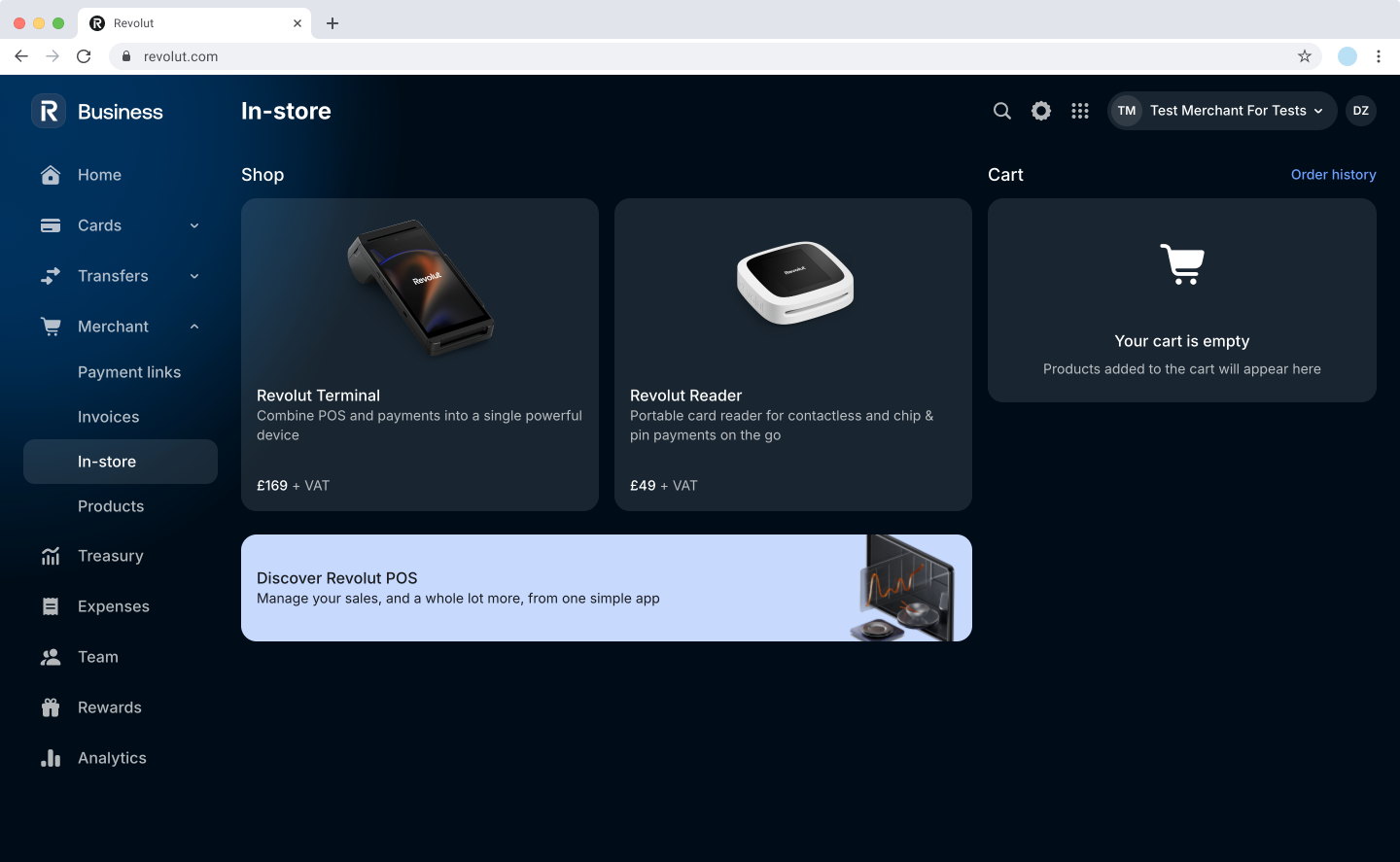
-
Click Get started, then follow the prompts to activate the POS system and set up your first location.
-
Once done, the POS web portal will open.
-
If you haven't done yet, you can order a Revolut Reader to accept card payments with your POS system.
iOS app setup
-
Download the Revolut POS app from the App Store with your iPad or iPhone.
-
Log in using your Revolut Business or Revolut Quick Sign Up credentials.
If you have multiple locations, ensure to select the right one.
-
Pair Revolut payment devices with your device via Bluetooth. To do so, see Hardware settings: Payment devices.
Revolut Terminal integration
The Revolut POS app offers two ways to integrate with your Revolut Terminal, each designed for different workflows:
Push payments directly from the POS to the Terminal for immediate processing.
Best for: Counter service, quick checkouts, or when the Terminal stays in one location.
How it works:
- Create an order on the POS app.
- Select card payment.
- Payment is pushed to the selected Terminal connected to the POS.
- Customer completes payment on the Terminal.
Setup required:
- Ensure both POS app and Terminal are logged in to the same location
- Enable Pay at Counter mode on your Terminal, - see Additional features: Enable Pay at Counter mode
- Ensure Terminal is properly connected and configured - see Hardware settings: Connect devices.
For detailed instructions, see: